
Free AI Photo Enhancer Online
Use our AI photo enhancer to sharpen soft details, balance lighting, and reduce grain in your everyday photos.
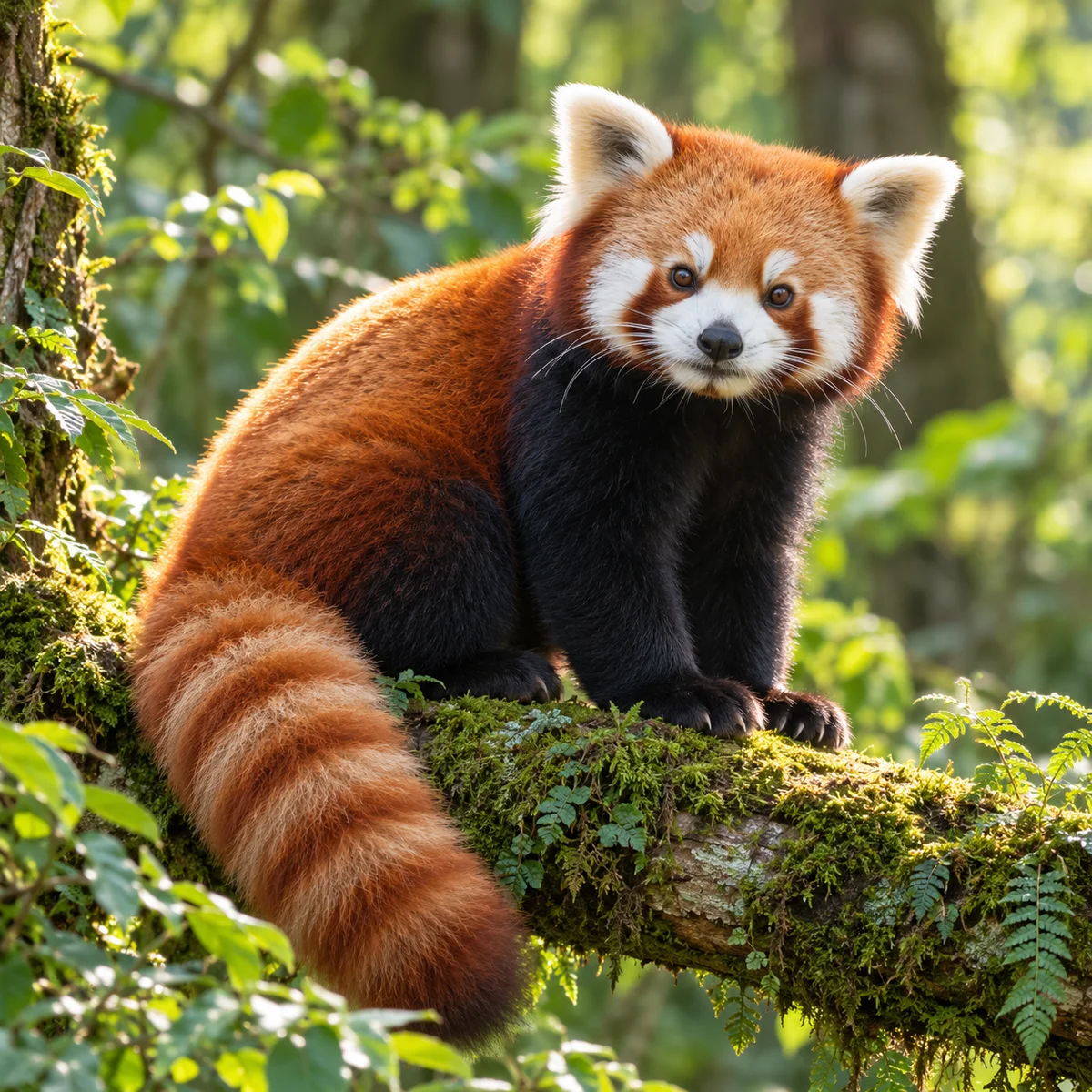
Free AI photo enhancer
Choose a photo to enhance, then compare the result with your original before saving.
Loading enhancement settings…
Examples of what to compare
Compare sample before-and-after pictures below. Drag each slider to see how sharpening, lighting adjustments, and noise cleanup look across different subjects.
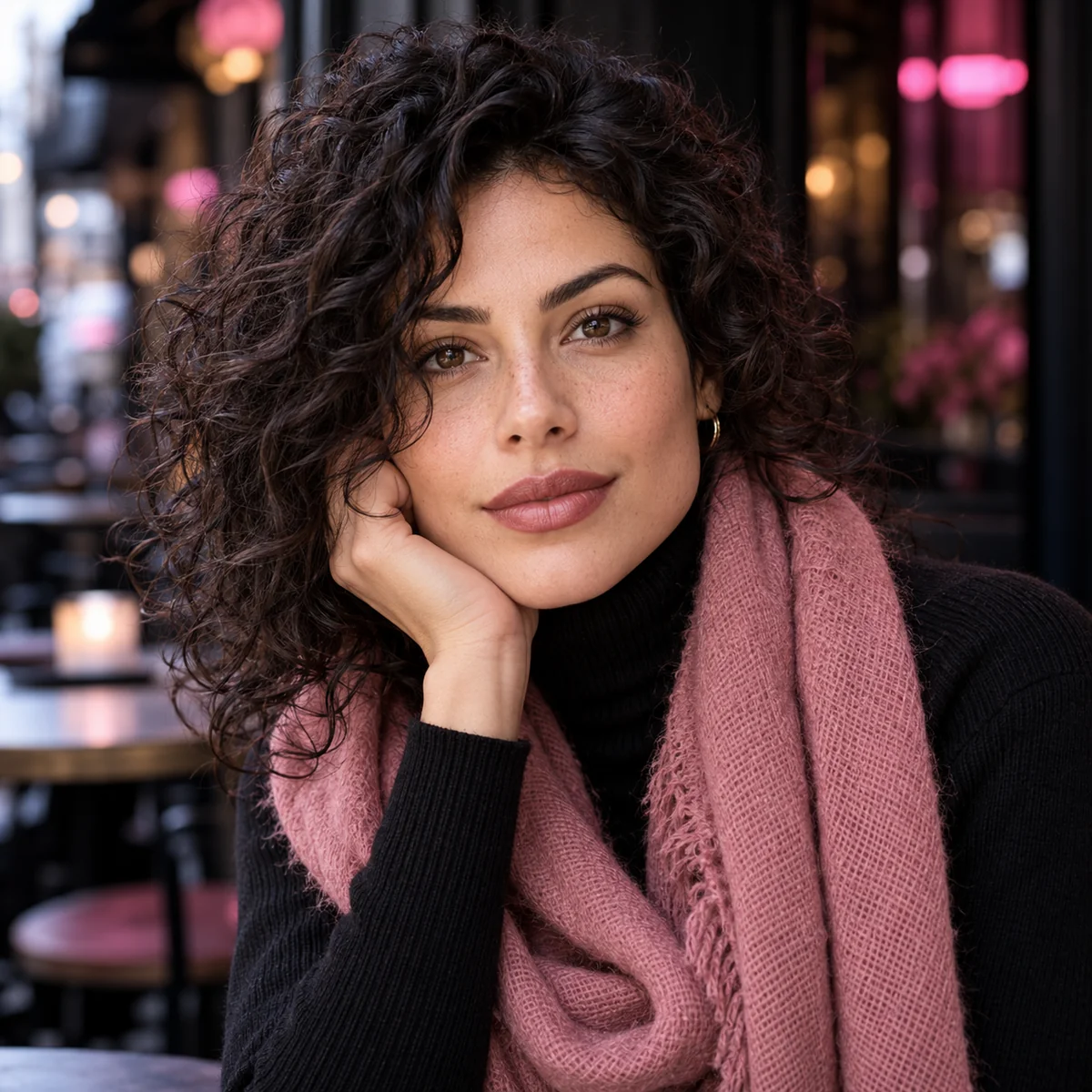
Portrait details
Inspect eyelash definition, fine hair strands, and skin details across close-up portrait photos.
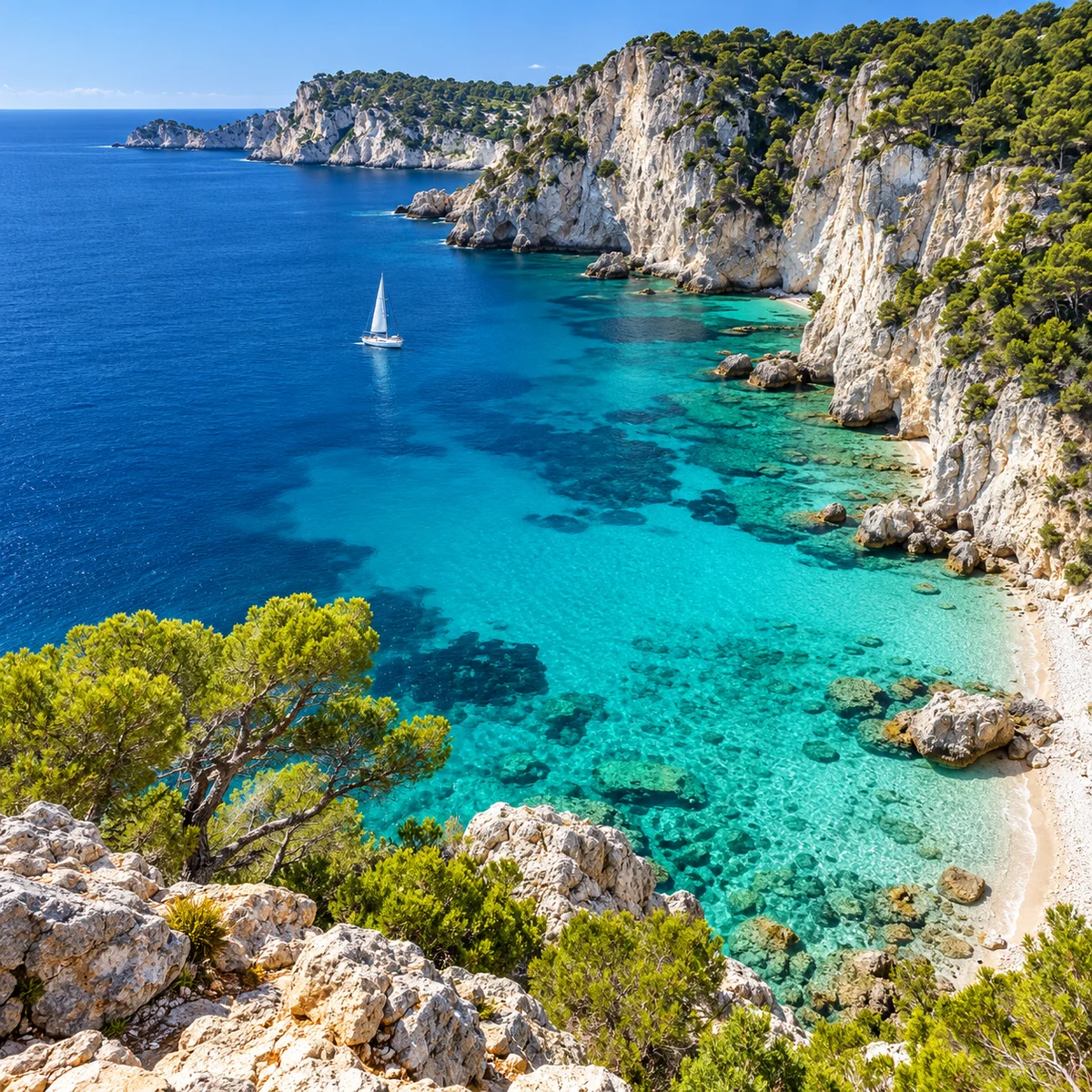
Coastal landscape
Check rock textures, ocean ripples, and distant cliffs across broad outdoor daylight shots.

Product packaging
Review label edges, can highlights, and water droplets. Check small lettering against the original.
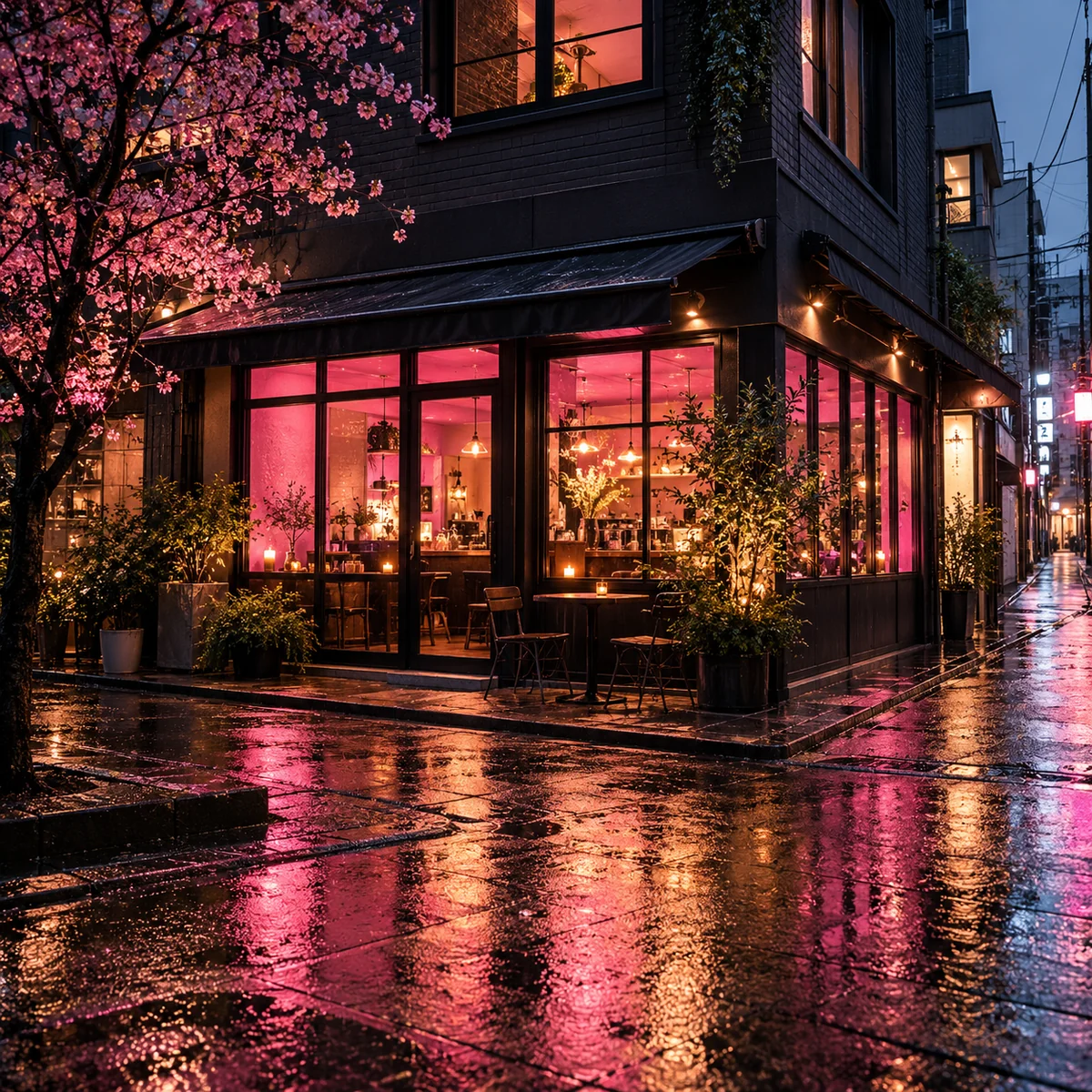
Night street scene
Reveal details hidden in dark shadows while keeping streetlights and neon signs balanced.
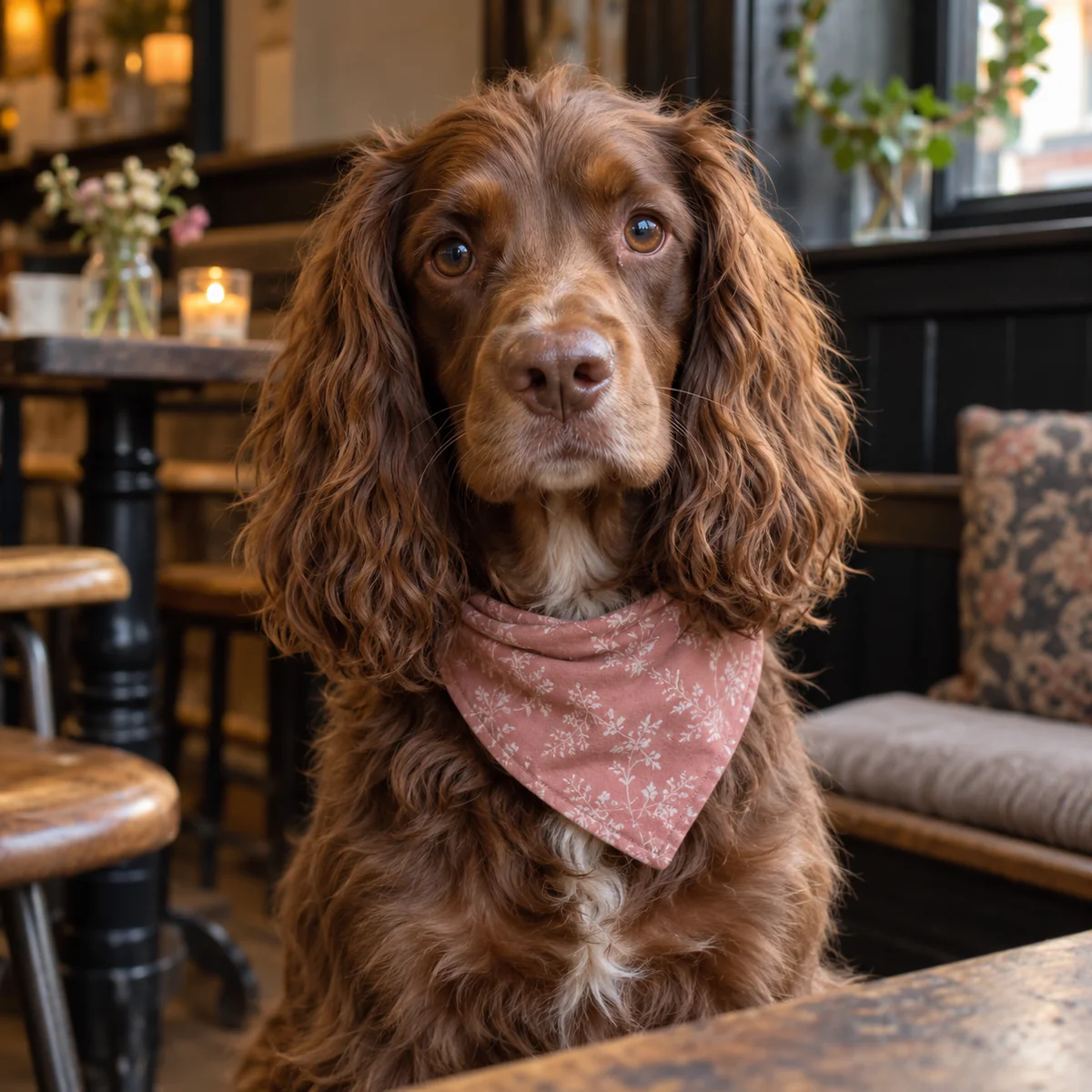
Pet photography
Compare eye highlights, individual whiskers, and soft fur texture on everyday pet photos.
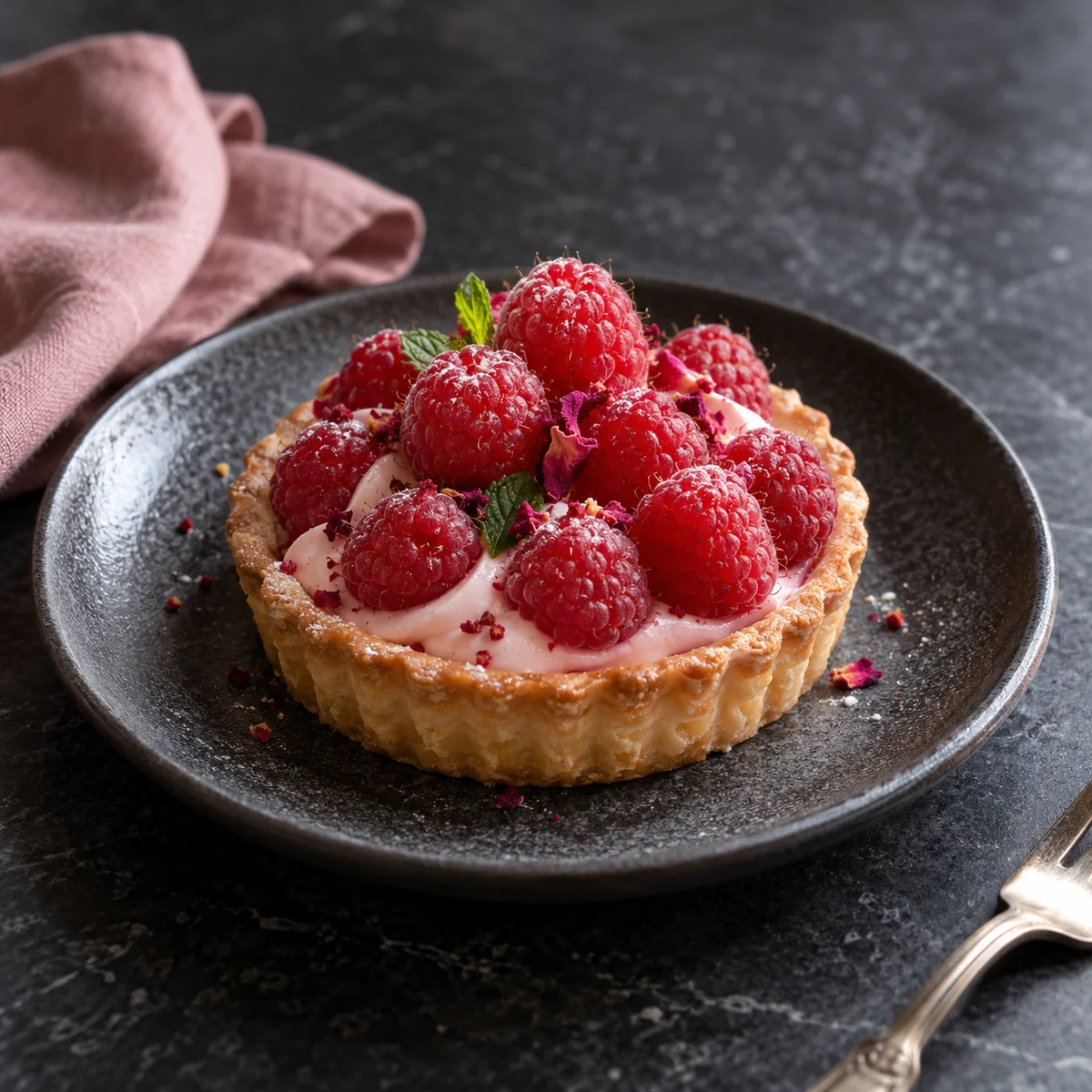
Food photography
Look at pastry layers, cream texture, and the natural colors of fruit.
What an AI image enhancer can do for your photos
Here is what you can expect when clarifying details and adjusting exposure on your existing photos.
Clarify existing details in your shots
An AI photo enhancer focuses on common image issues like soft focus, uneven lighting, and dark shadows. The goal is to bring out existing details so subjects look clearer and colors appear balanced. Because AI may change fine details, you should always compare important facial features, textures, and text with your original capture.
- Clarifying soft edges caused by slight camera shake or missed focus.
- Lifting heavy shadows and balancing uneven exposure across the frame.
- Reducing distracting digital noise in low-light backgrounds.
This AI image enhancer aims to improve existing photos rather than generate new scenes. Because AI processing may alter subtle details, compare faces and small text with your original.
Why use an AI photo enhancer online?
A convenient way to touch up your favorite pictures online without complicated editing tools.
Works in your browser
Enhance your pictures directly online without installing desktop applications or managing software updates on your personal computer.
Simple controls
Upload your photo and begin processing with one click. Clear prompts guide each step from start to finish.
Compare before saving
Compare the original with the result to check details and lighting before downloading your photo.
Keep your original
Your original file remains untouched. The enhancer creates a separate preview so you can evaluate adjustments safely.
Fits your screen
Review pictures comfortably on desktop monitors, tablets, or phones with a responsive layout designed for easy viewing.
Free to try
Use your existing PhotEditor credits, including available trial credits. Each 2K enhancement costs 10 credits.
How to use our AI photo enhancer
Three simple steps help you evaluate clarity and save a cleaner picture.
- 01
Upload your photo
Select a JPG, PNG, or WebP file from your computer or phone to open it in the workspace.
- 02
Enhance the image
Click the enhance button so the AI image enhancer can adjust contrast, reduce grain, and sharpen soft edges.
- 03
Compare and save
Inspect the original and enhanced versions side by side. When satisfied with the result, save your photo.
 Original photoReady to enhance
Compare the detailsSave image
Check faces, text, and fine textures in your AI photo enhancer result before saving.
01FINE DETAIL
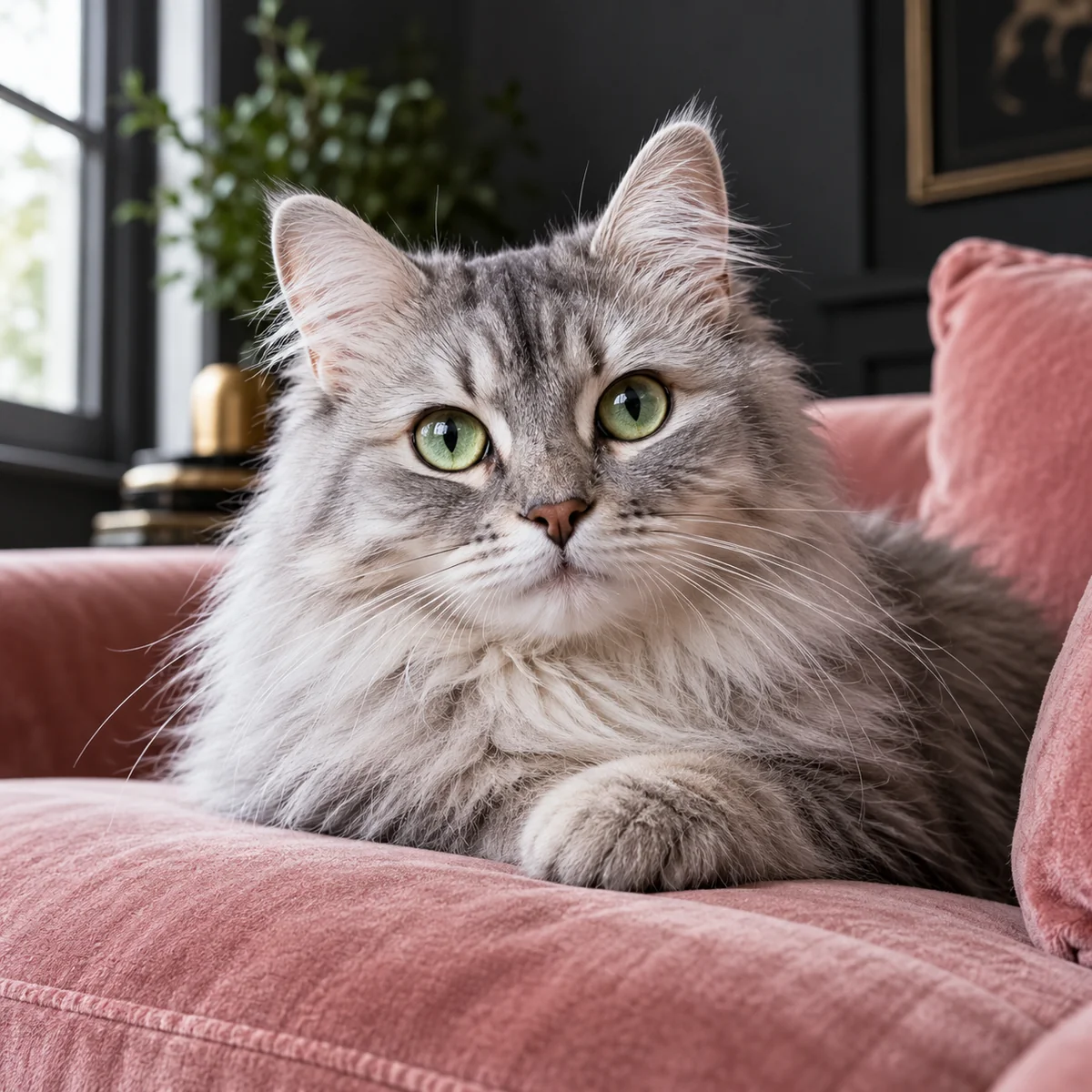
Bring soft fur and delicate textures into view
Close-up pet shots often blur around whiskers, paws, and ears. An AI photo enhancer can help clarify soft outlines so individual hairs are easier to see. Be sure to check the animal's coat and eye reflections against the original to ensure the texture looks natural.
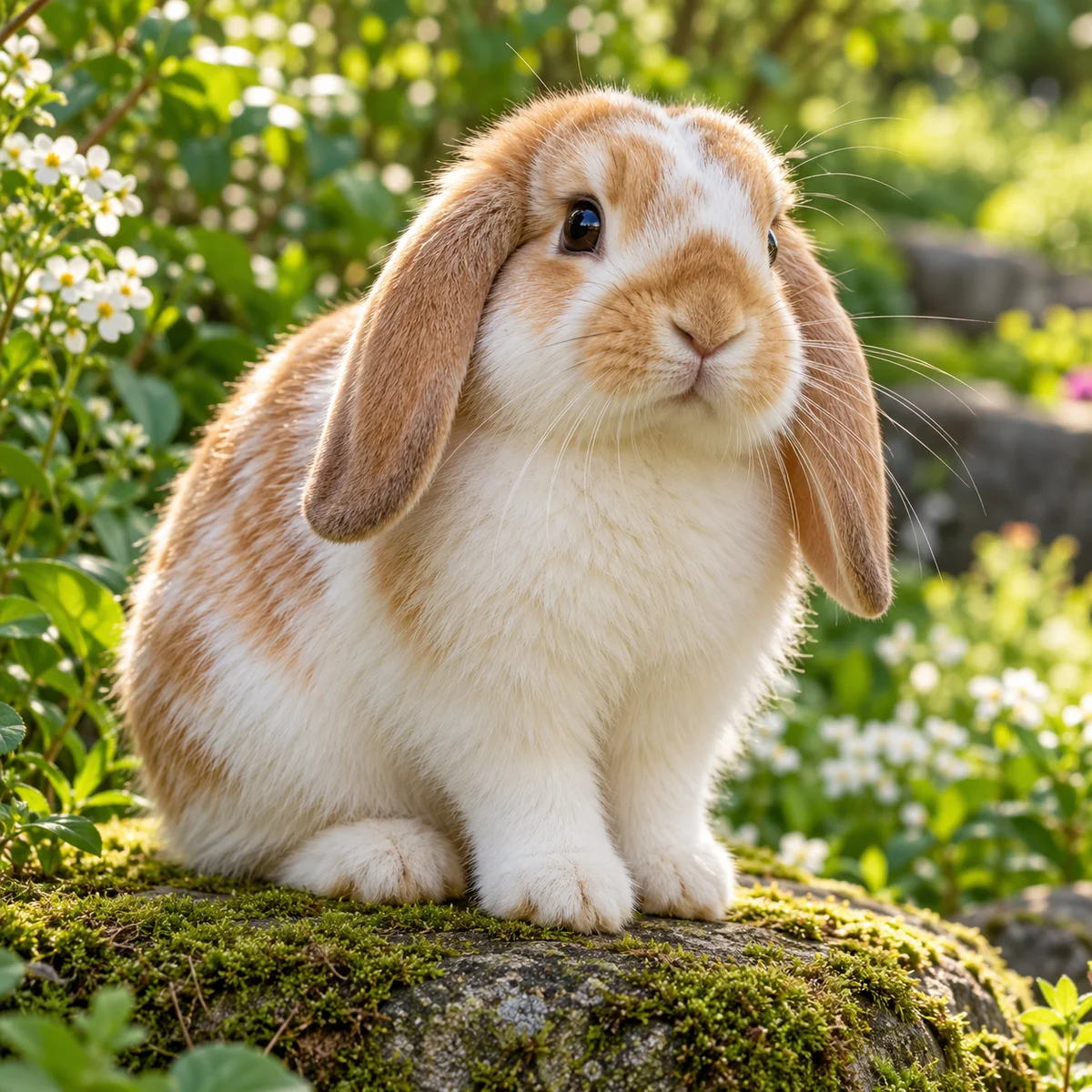
Check whisker tips, eye highlights, and soft fur edges.
02PHOTO CLARITY
Improve clarity in portrait photos
Camera shake or missed focus can leave a portrait looking soft. An AI image enhancer aims to bring out eyelashes, eyebrows, and hair strands for a cleaner look. Compare facial features and expression lines with your original snapshot to ensure the portrait still looks like the person you photographed.
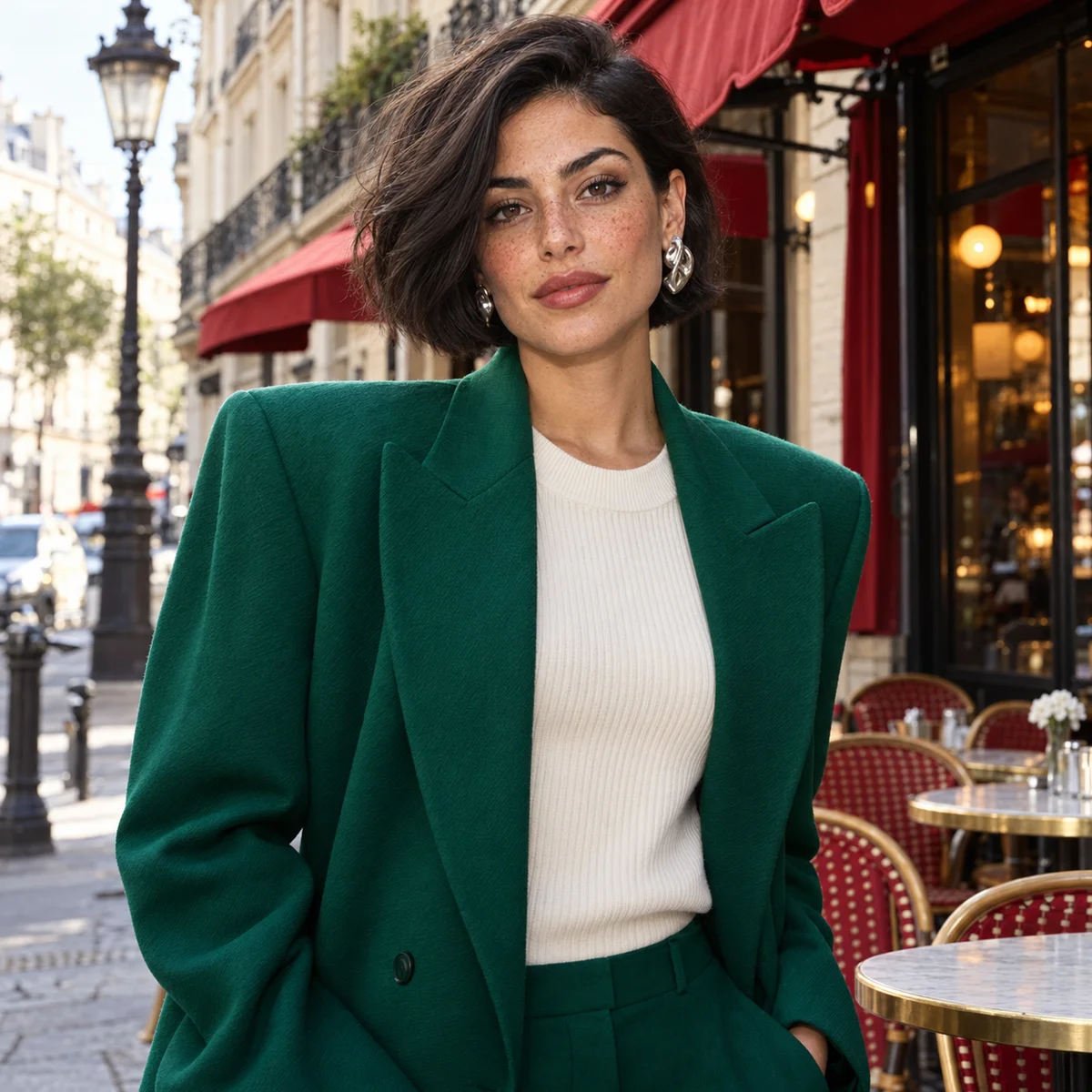
Examine eyelash definition, skin texture, and hair outlines.
03LIGHT & COLOR
Balance room lighting between bright windows and shadows
Bright windows often leave indoor furniture and walls looking too dark. This AI photo enhancer helps lift shadow areas across sofa cushions and floors while controlling strong daylight highlights. Inspect both dark corners and bright window glass to make sure room colors remain balanced.

Look at cushion fabric texture alongside bright window light.
04NOISE & TEXTURE
Clean up grain in low-light performance photos
Low-light concert photos often show visible grain in dark areas. An AI image enhancer can help smooth visible noise in stage backgrounds while defining microphone metal and clothing weaves. Compare dark shadows with brightly lit clothing to see how well subtle surface details hold up.
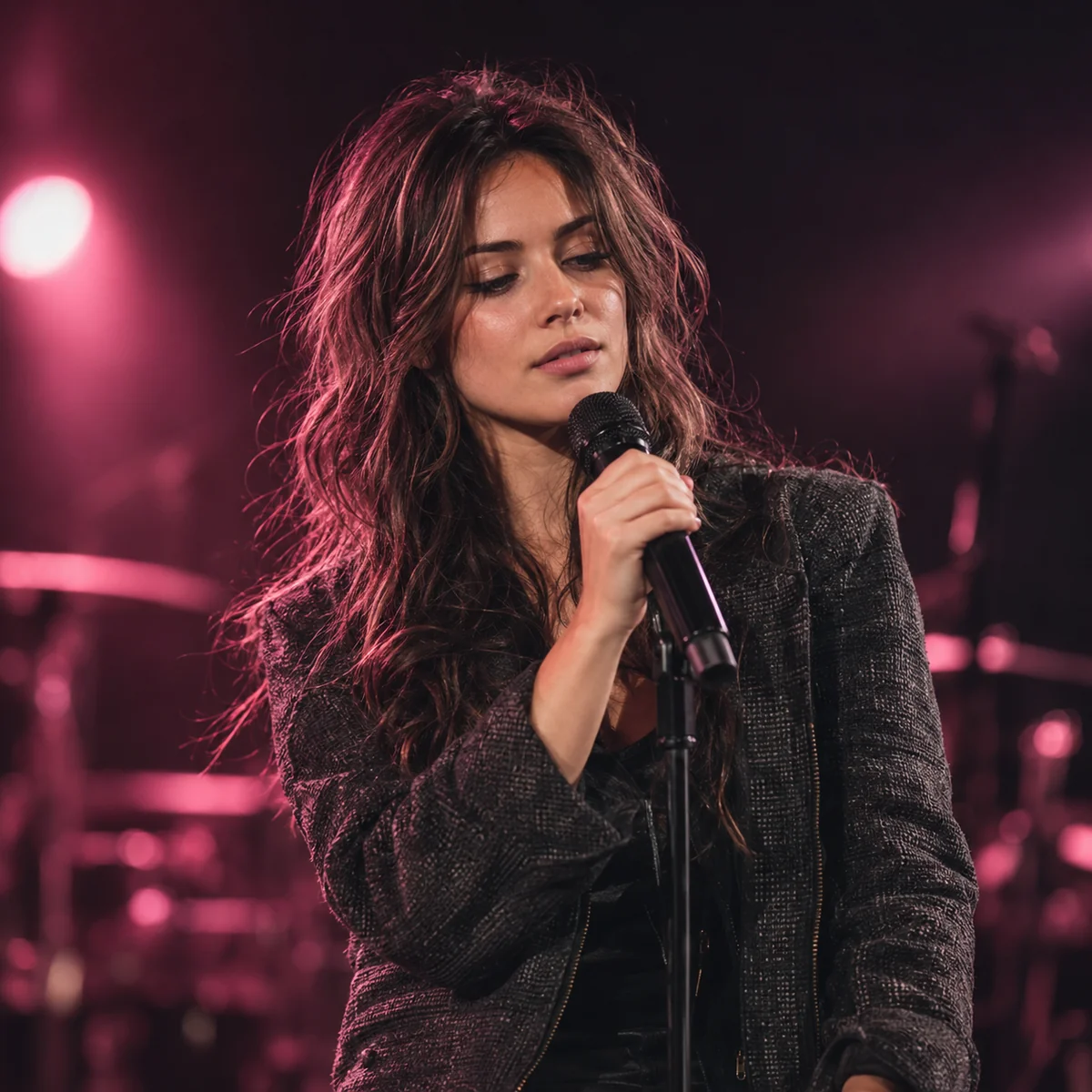
Check background noise reduction alongside clothing fabric and hair details.
AI Photo Enhancer FAQs
Common questions about using our online AI photo enhancer.
Is this photo enhancer free to use?
Each enhancement uses 10 PhotEditor credits and produces a 2K image with GPT Image 2. Available trial credits can be used. Check your account balance or Pricing for more credits.
Do I need to create an account to enhance photos?
You can preview an uploaded photo without signing in. Sign in with your existing Google or email account to enhance it. Your photo draft is preserved when you return from sign-in.
Which image formats and file sizes can I upload?
The tool accepts JPG, PNG, and WebP files up to 10 MB and 24 megapixels. If your picture exceeds these limits, try reducing the file size or pixel dimensions before uploading.
Can an AI image enhancer restore heavily blurred photos?
An AI image enhancer can help sharpen gentle motion blur and improve faded contrast. However, it cannot guarantee accurate recovery when important facial features, fine textures, or text are heavily degraded.
Does a clearer photo always have a higher resolution?
This tool produces a 2K image using the closest supported aspect ratio. The pixel dimensions and framing may differ from your original, and large source images may produce a smaller output. Check the full result before printing.
How are my uploaded photos handled?
Read our Privacy Policy for details on how uploaded content and account data are handled.
Privacy PolicyAre the comparison images real enhancement results?
The sample comparisons below the workspace are simulated illustrations. When you upload a photo and enhance it, the workspace shows your original alongside the actual GPT Image 2 result. Results depend on the source image; check faces and text carefully.
How can I enhance photo quality on my phone?
Our online picture enhancer works across desktop and mobile screens. Simply upload your image and use the side-by-side view to inspect sharpness and textures before saving.