
Ethan Mercer
Online Store OwnerI photographed a backpack against my apartment wall and tried a plain studio background in PhotEditor. The simpler setting worked much better for the listing I was putting together.
Describe a scene, choose a style, and create a picture in your browser.
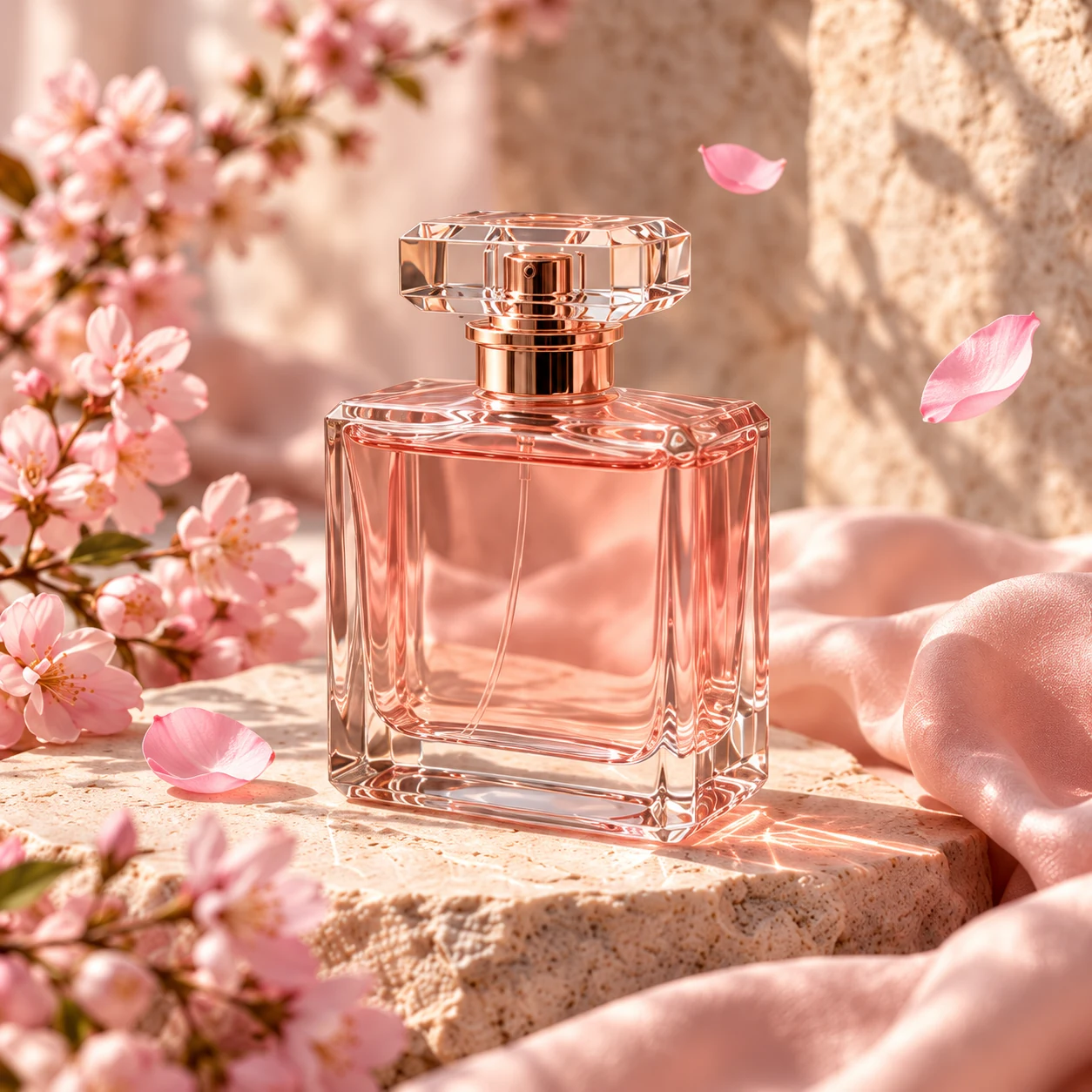
A glass perfume bottle surrounded by pink petals, soft studio light, editorial product photography.
Enter a prompt, choose your style and aspect ratio, then select Generate image.
Explore ideas for scenes, characters, and visual styles to try with a free online AI image generator.
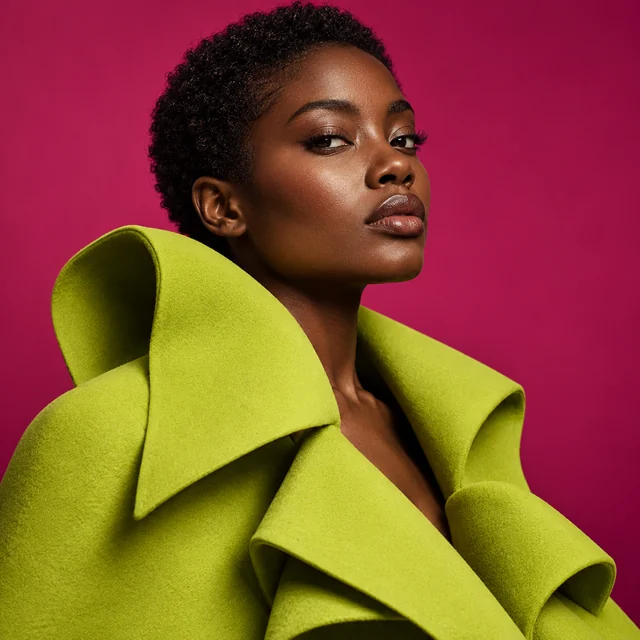
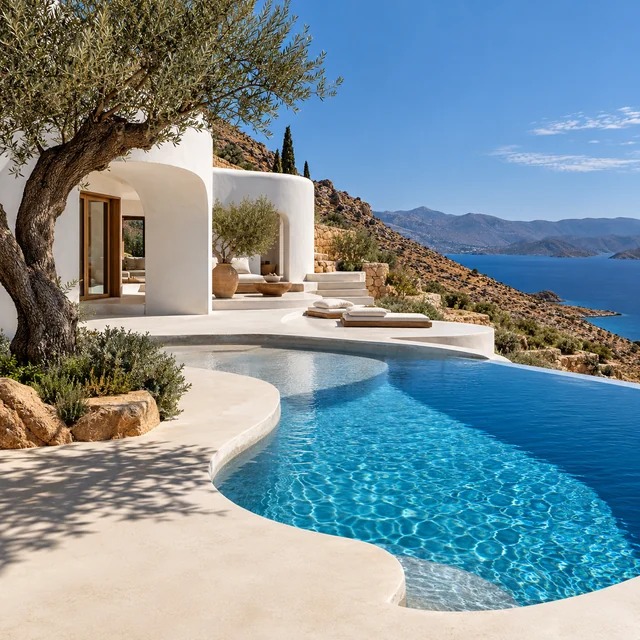
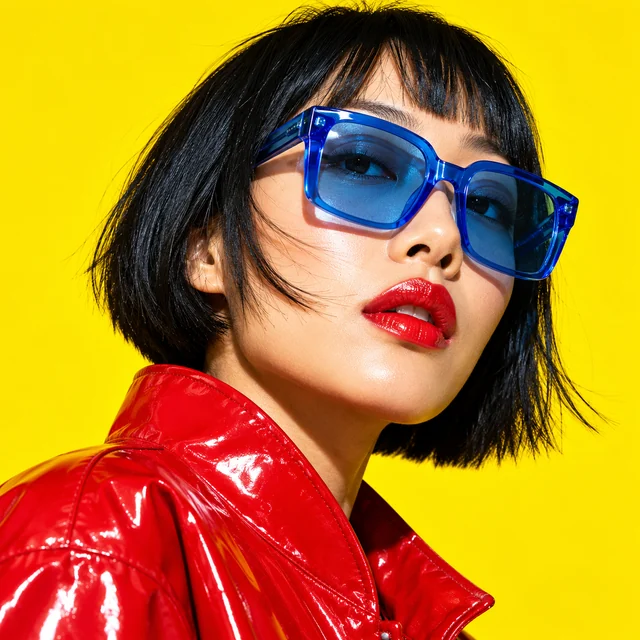
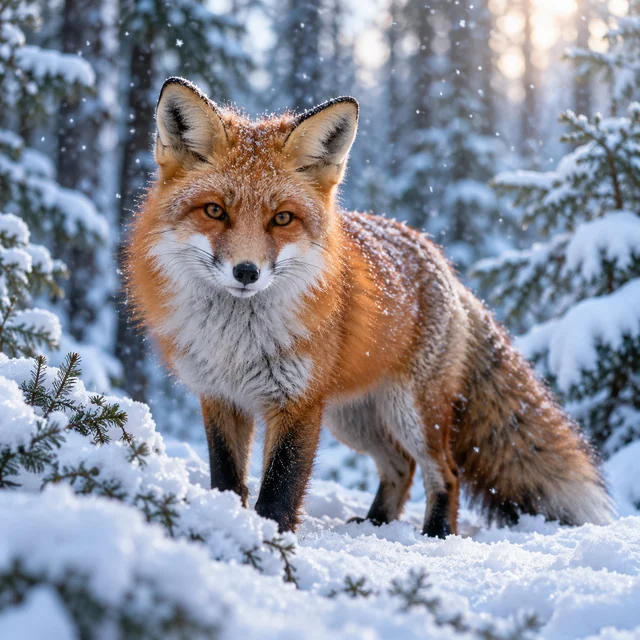
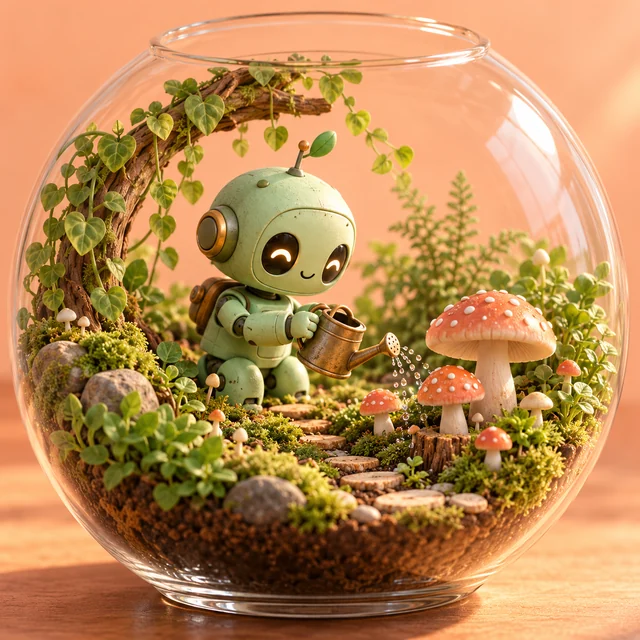
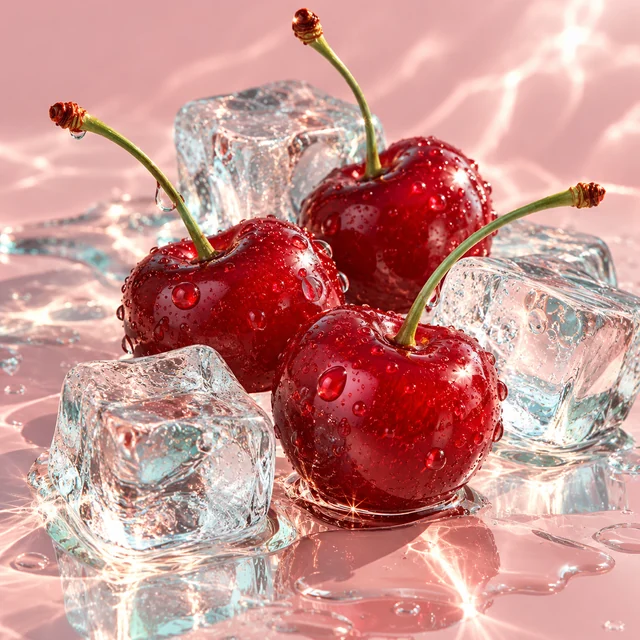
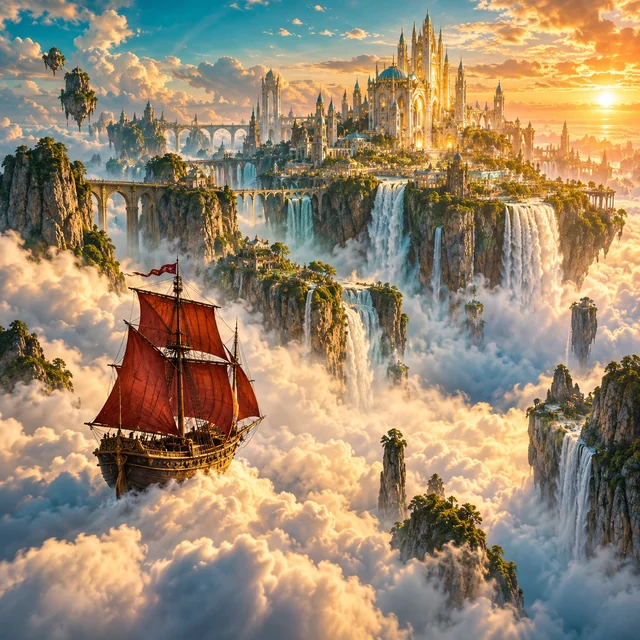
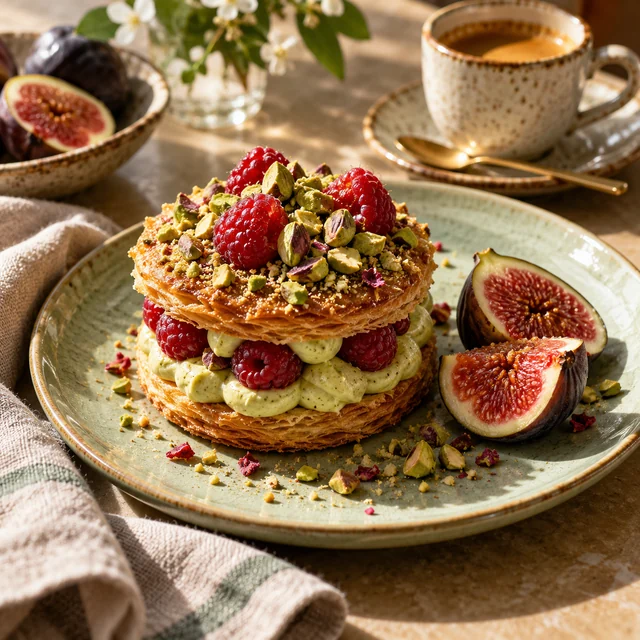
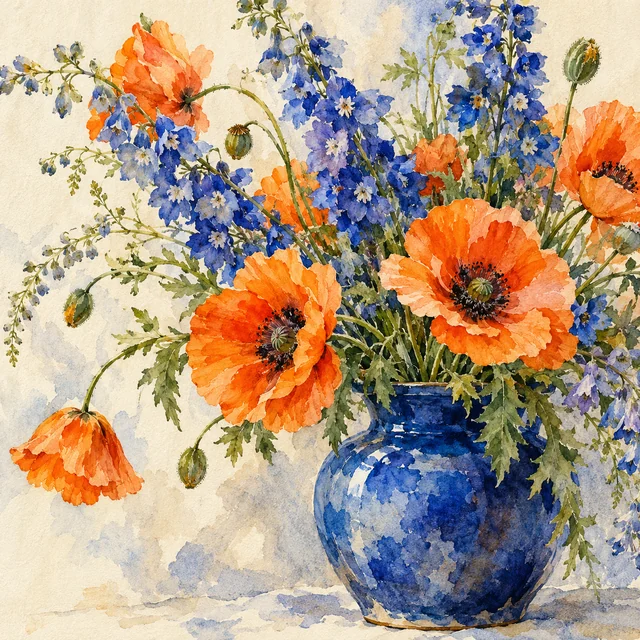
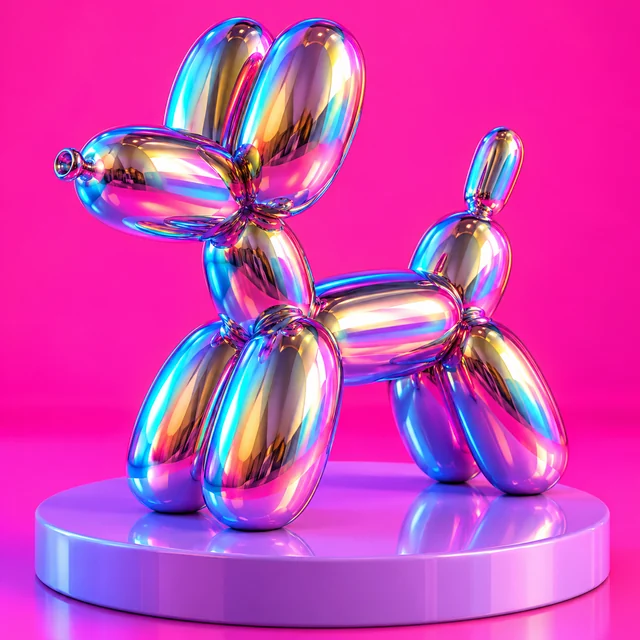
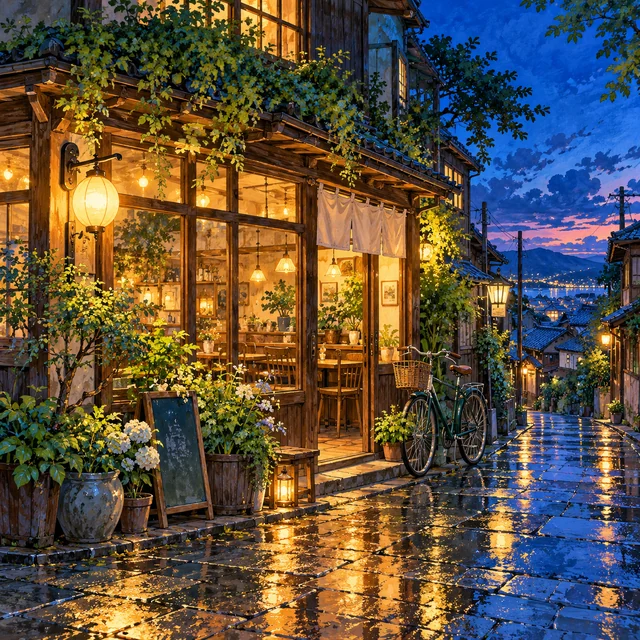
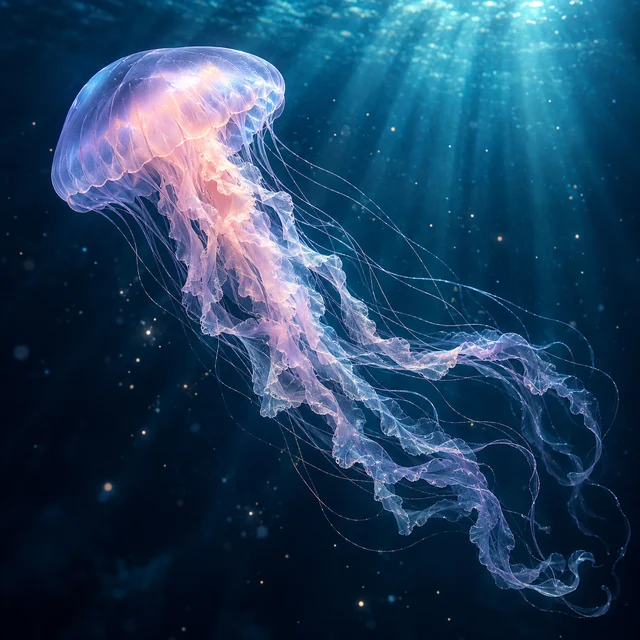
An AI image generator turns a text-to-image prompt into a new picture. Describe what you want to see, without starting from a photo.
Describe your subject, setting, and lighting in your prompt. This free AI image generator builds the scene directly from your words. Choose Photo for a photographic look, or explore other styles with the AI photo generator.
This AI photo generator creates brand-new images from text prompts alone. To edit existing pictures, open AI Photo Editor.
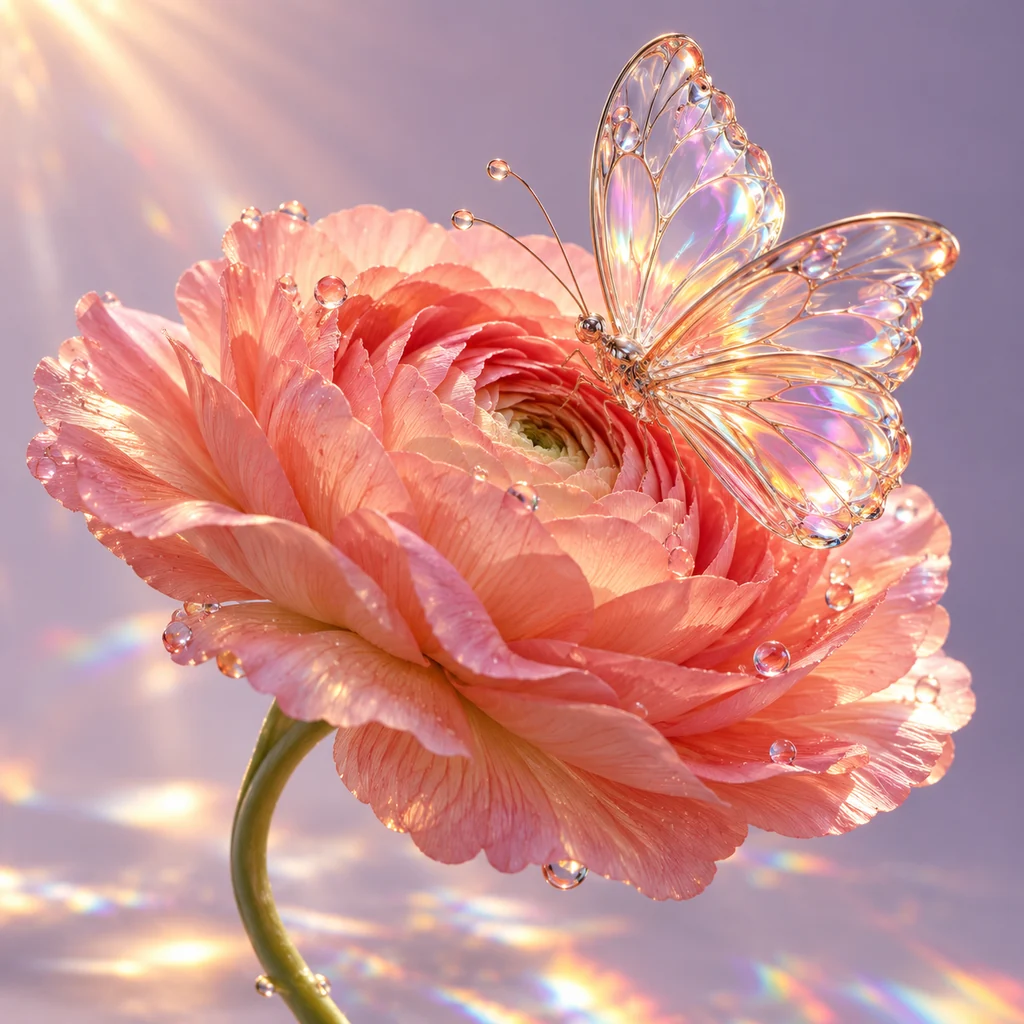 AI-generated example
“A glass butterfly resting on a coral-pink flower, soft lilac background, warm sunlight and delicate rainbow reflections.”
Use PhotEditor's free online AI image generator to explore text-to-image ideas without installing editing software.
Choose your style and aspect ratio before you generate.
Pick Photo for a photographic look, Anime for illustrated figures, or 3D for depth. The AI photo generator lets you try different visual styles to match your creative concept.
Choose a square, wide, or portrait format before generating. The AI image maker offers five aspect ratios, so you can start with a shape that suits your layout.
Write prompts and review results in one browser workspace. You can find completed pictures from the free AI image generator in My Creations when signed in.
Create a picture from a text-to-image prompt in three simple steps with this free AI image generator.
Describe your subject, setting, lighting, and colors. A detailed text-to-image prompt gives the AI image generator a clearer starting point for your picture.
Choose Photo or another style for your project, then pick an aspect ratio suited for your layout.
Sign in with Google or a verified email, check the credit cost, then select Generate image. When the AI image generator finishes, open Your result to download your picture.
A glass butterfly resting on a coral-pink flower, soft lilac background, warm sunlight and delicate rainbow reflections.
03 / Your resultEligible new accounts receive a one-time grant of 15 trial credits after email or Google verification. You'll see credit costs before generating.
01Bring ideas to life
Describe a moonlit glasshouse with giant camellias and reflections on water. This AI image generator turns your text-to-image prompt into a starting point for story scenes, book illustrations, or personal artwork.
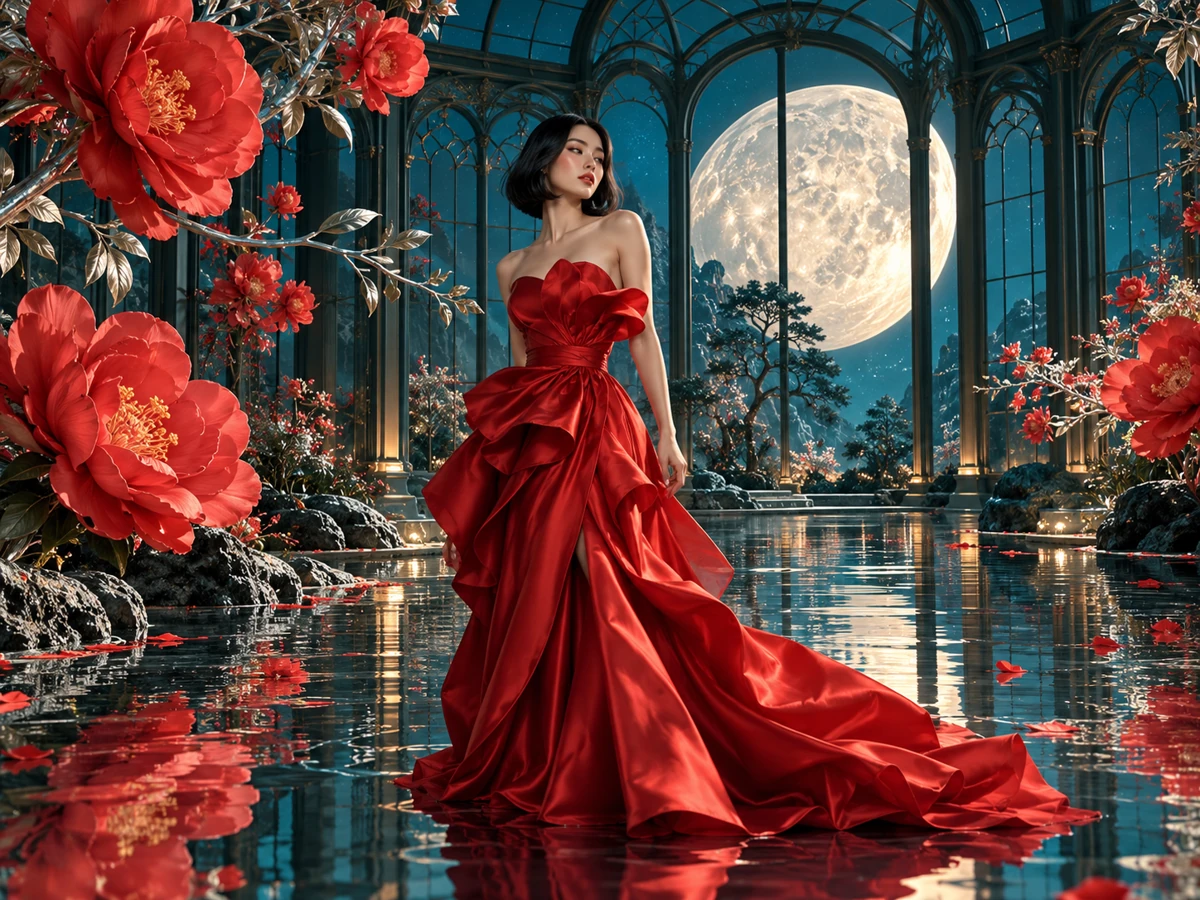
A woman in a red silk dress in a midnight-teal glasshouse, giant camellias, a luminous moon and reflections on shallow water. Cinematic fashion photography.
02Product concept drafts
Use the AI photo generator to explore product scenes before a studio shoot. Describe materials and lighting in the AI image generator to create images for mood boards or presentations.
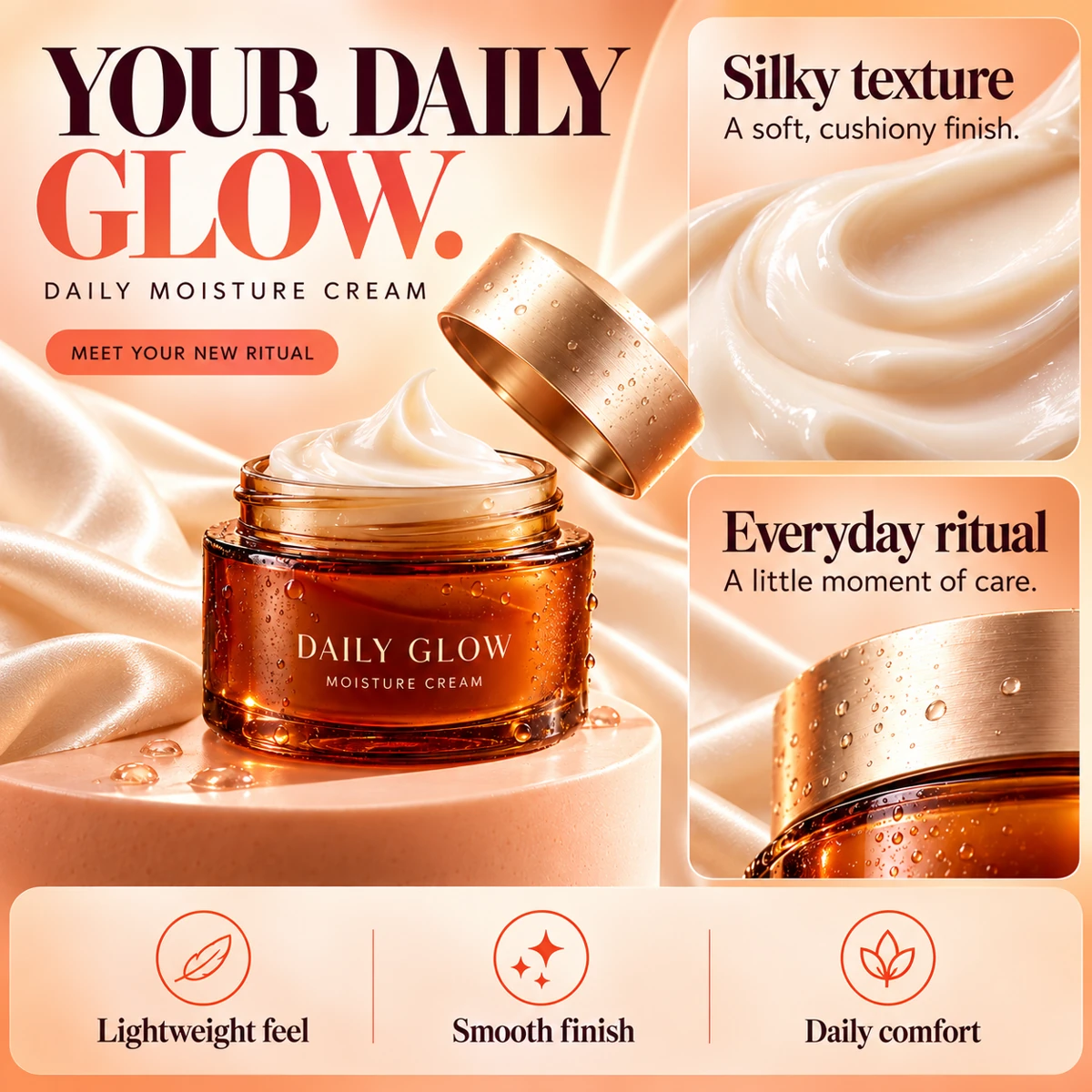
A premium skincare ad with an amber moisturizer jar, ivory silk and a peach palette. Add “YOUR DAILY GLOW.”, cream texture close-ups and three benefit panels. No fruit.
03Explore different styles
Keep your subject description and try Photo, Anime, or 3D to explore different looks. The AI image generator uses the selected style to guide the result. Compare the pictures before choosing a direction; details may differ between generations.
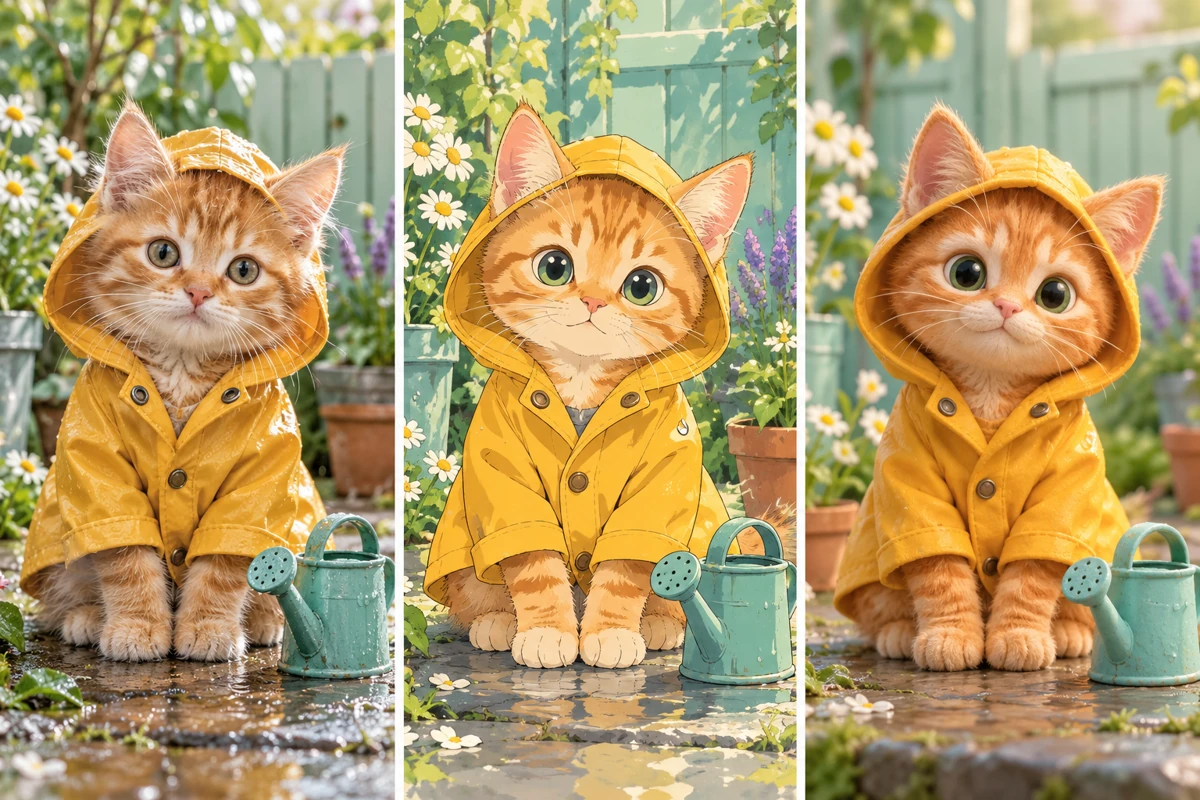
An orange tabby kitten in a yellow raincoat, sitting beside a teal watering can in a soft mint garden. Keep the same subject and scene across three styles.
04Campaign concept drafts
Brainstorm promotional photos for seasonal sales with this free AI image generator. Use the AI photo generator to experiment with colors and ad layouts, and always double-check copy and small details before launch.
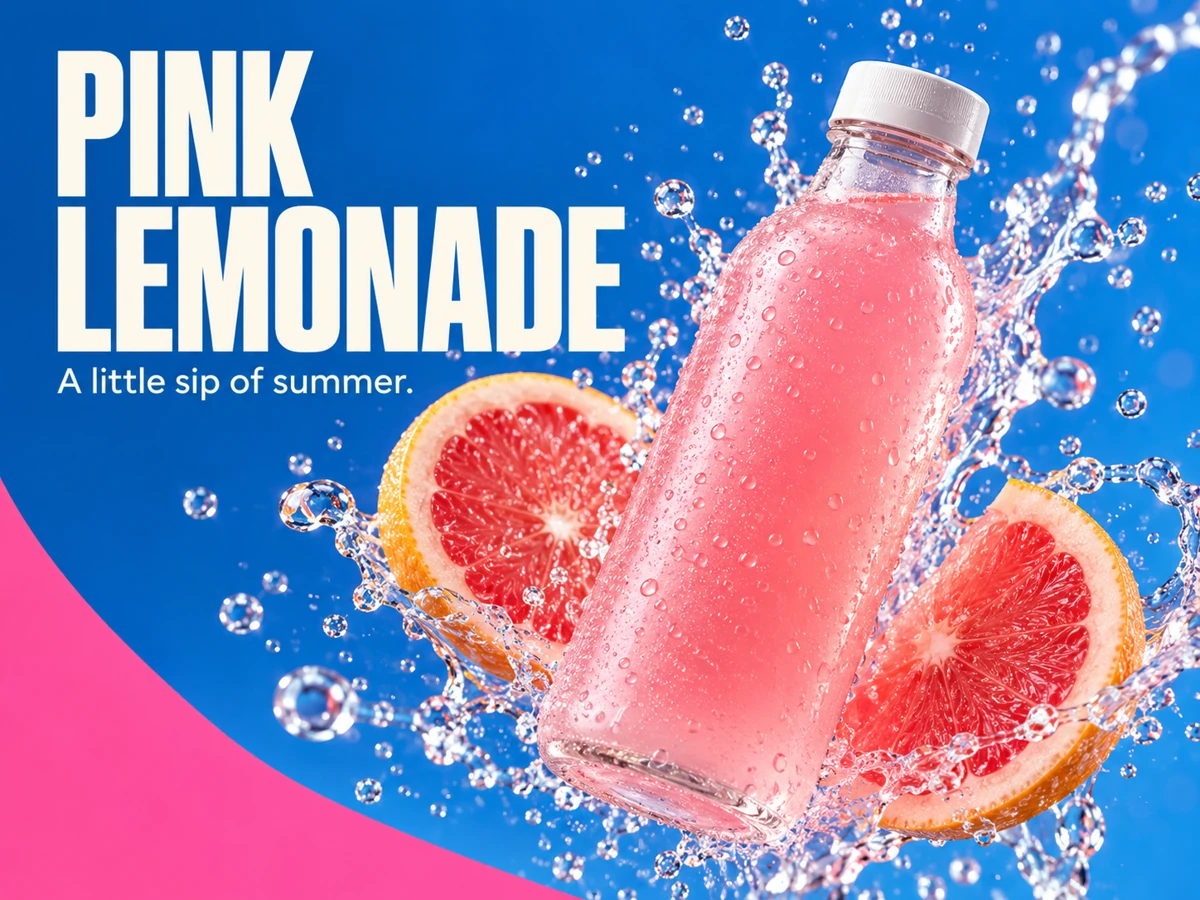
A pink lemonade ad: a floating bottle, grapefruit slices and sparkling splashes on cobalt blue. Bold cream headline “PINK LEMONADE” and “A little sip of summer.”
See user reviews across the PhotEditor platform, spanning our free AI image generator and photo editing features.
User avatars are AI-generated illustrations.
I photographed a backpack against my apartment wall and tried a plain studio background in PhotEditor. The simpler setting worked much better for the listing I was putting together.
There were scissors and bits of ribbon all around the bouquet in my photo. I removed those distractions in PhotEditor, and the flowers finally got the attention they deserved.
That gym photo had a bin right beside the bench. I removed it in PhotEditor and used the edited version for a workout post. Small change, much cleaner picture.
I wanted a softer background for a photo of my handmade mugs. It took a couple of prompt changes to get the setting I had in mind, but I liked the final direction.
Our new iced coffee looked a bit dull in the original photo. I asked PhotEditor for warmer lighting, and the edited version felt closer to the atmosphere of our café.
I liked my street photo except for a bright rubbish bag in the corner. Removing it made the picture easier to use alongside the travel story I was writing.
I tried a darker background on a rehearsal photo for a gig announcement. The first version was too dramatic for us, but adjusting the prompt got it closer to our style.
Useful for rough visual ideas. I turned a street photo into a pixel-art scene to explore a game's mood before committing time to the actual environment artwork.
I wanted to see how a chair I'd made would look in a bright living room. PhotEditor gave me a visual reference to work from when planning the real product shoot.
A warm cream background suited our monthly book pick better than the desk I'd photographed it on. I used that version in the newsletter and kept the layout simple.
We had a good rehearsal photo, but everyone's bags were piled against the wall. Cleaning up that background made it a better fit for our next class announcement.
Before suggesting new cushions, I tried a muted green in a photo of the room. Having that image made the color discussion much easier than describing it over email.
I gave a photo of a classroom prop a storybook look for a lesson slide. Being able to describe the change was helpful since photo editing isn't something I do often.
I generated a woodland scene for a mood board. Some details weren't what I'd pictured, but the colors gave me a starting point for sketches I wanted to develop myself.
I had a location photo with distracting signs in the background. Removing them in PhotEditor made it easier to show a client the framing I had in mind for a shoot.
I changed a jacket from black to burgundy in an outfit photo. Seeing the two versions side by side helped me explain a color combination before sourcing the actual clothes.
We needed a less cluttered image for an episode announcement. I edited the background of a microphone photo in PhotEditor, then added the episode title in our usual design app.
I tried a painted style on a dog portrait for a client's birthday card. It was a fun variation to share alongside the original, especially for something more personal than a regular print.
Answers to common questions about our free AI image generator, trial credits, styles, and downloading.
Eligible new accounts receive 15 trial credits once after completing email or Google verification. Credits do not refill daily. You'll see the credit cost before you generate, and this free AI image generator reserves credits when you submit your request.
Free trial detailsYou can browse examples, write a prompt, and set the style and aspect ratio without an account. To generate with this AI picture generator, sign in with Google or a verified email, then select Generate image.
Specify your subject, environment, lighting, and camera perspective clearly. For instance, describe soft window light or a top-down view. Detailed prompts guide the AI photo generator toward realistic results.
Choose from Auto, Photo, Anime, 3D, Art, or Product. Choose Photo for a photographic look, pick Anime or 3D for character art, or select Art for illustrations. Auto adapts to your prompt.
Yes. Choose 1:1, 4:3, 3:4, 16:9, or 9:16 before generating. This free AI image generator sets the frame shape for square posts, banners, or vertical mobile layouts, rather than providing custom pixel size controls.
This AI image maker creates new pictures from a text-to-image prompt. To edit a photo you already have, open the AI Photo Editor.
Open the AI Photo EditorWhen generation finishes, open Your result and select Download image to save the file. The AI image generator also lists completed pictures in My Creations, which you can view while signed in.
If a task is marked failed or canceled, reserved credits are returned. The AI image generator uses credits for completed images, even if you don't like the result. Generating again costs additional credits. Closing the page does not cancel a running request, so check My Creations before starting again.
Yes. You can use the free online AI image generator in a modern mobile browser. Write a prompt, choose a style and aspect ratio, then sign in to generate and download your picture.