
AI Image Upscaler Online
Upscale your images to 2×, 4×, or 8× with our AI image upscaler online. Enlarge photos up to 2,048 px and inspect reconstructed detail.
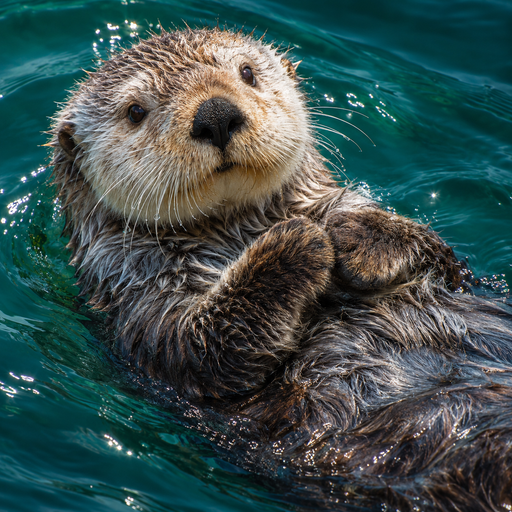
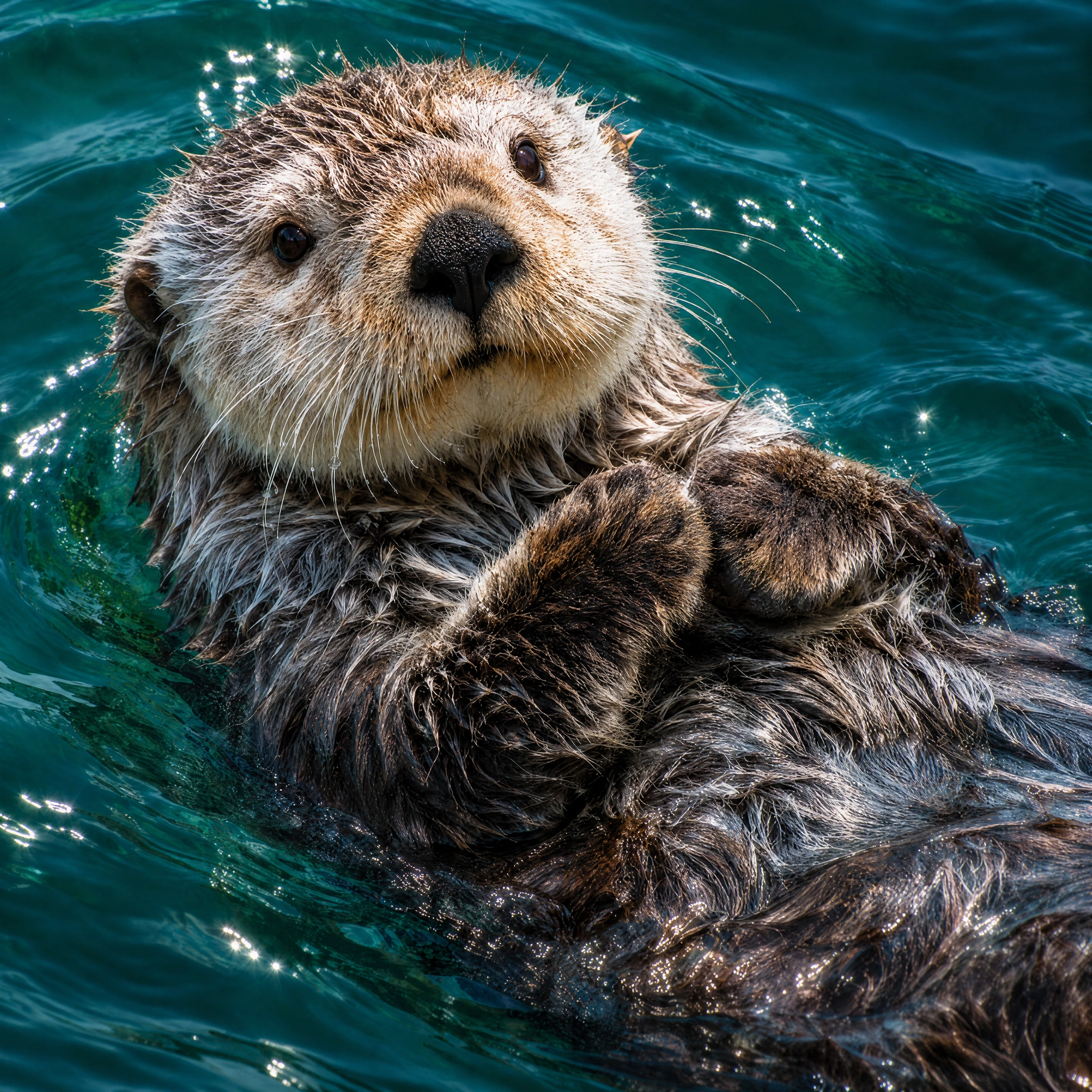
Upscale your image
Select a scale to calculate target dimensions and upscale your image.
Maximum output is 2,048 px on each side and 4,194,304 total pixels (4 MP).
Loading account settings...
Preview locally before login up to 10 MB and 24 MP. Files upload upon submission. Targets up to 1,024 px cost 6 credits; up to 2,048 px cost 10 credits.What does an AI image upscaler do?
More pixels for the places your images need to go.
Proportional dimensions. More room to work.
Image upscaling increases image resolution by expanding the pixel dimensions of a picture. Scaling to 4× multiplies width and height by four, producing sixteen times as many total pixels. An AI image upscaler reconstructs detail from the source rather than simply stretching pixels, giving you a larger canvas to work with.
- Prepare larger pixel dimensions for screens and print layouts
- Preserve your original aspect ratio in target size calculations
- Inspect edges and surface textures on a larger canvas
Start with the clearest file you have. Small text and intricate patterns deserve a close check at final size.
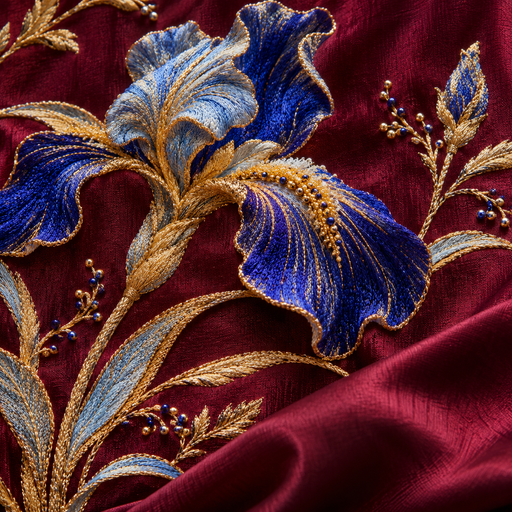 Before
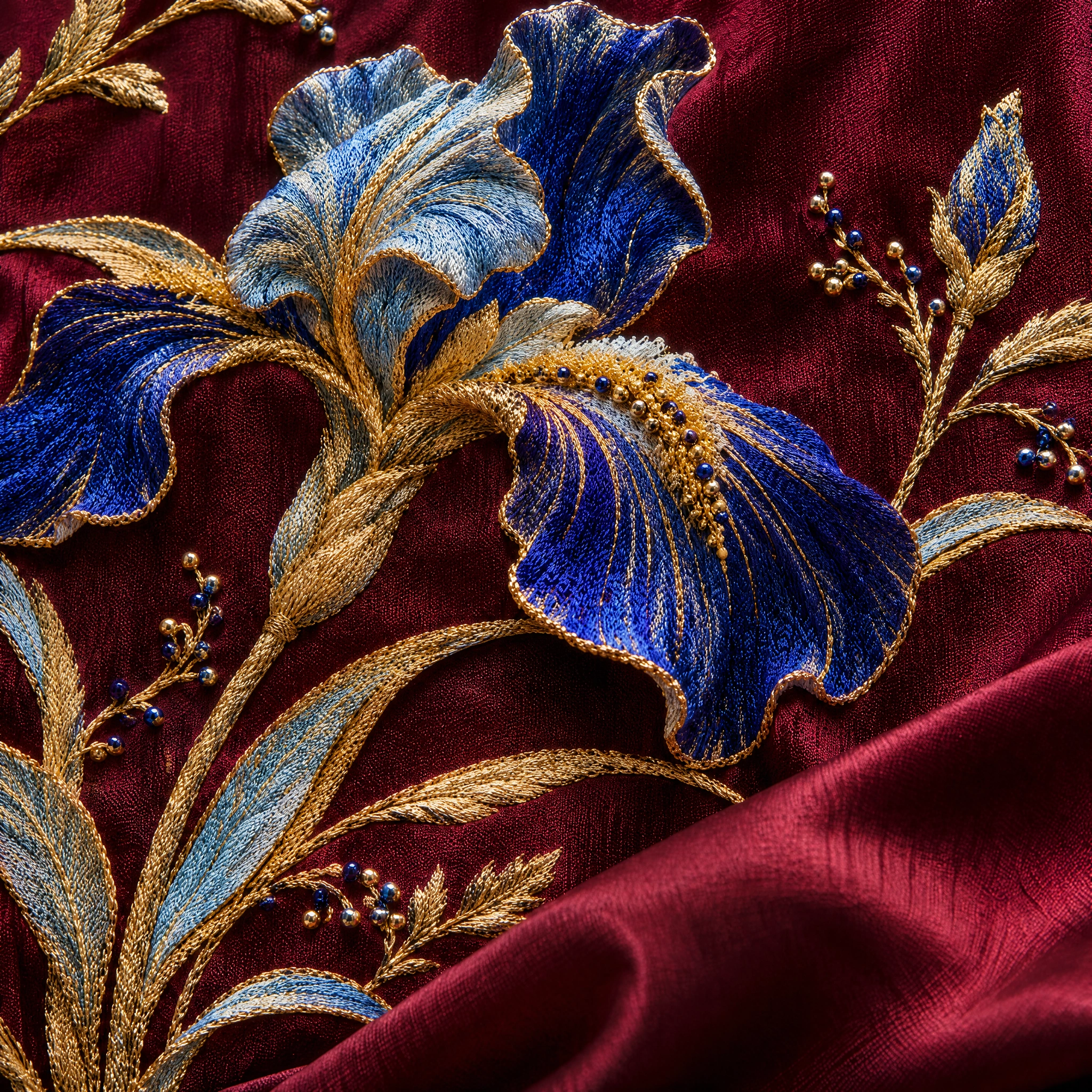 AI upscaled
Why make PhotEditor part of your workflow?
An AI upscaler workspace to preview dimensions, generate enlarged images, and inspect fine details.
Start in your browser
Open our AI image upscaler online on your computer, tablet, or phone without installing extra software.
Choose your scale
Switch between 2×, 4×, and 8× presets to enlarge width and height up to 2,048 px per side within supported limits.
See the size first
Review source dimensions, target pixel measurements, and required credits before starting your upscale.
Keep your proportions
Final resizing to target dimensions uses integer-pixel rounding without cropping or stretching. Check your result closely, as generative upscaling can alter content and edge details.
Work on your device
Adjust scales and inspect before-and-after details comfortably across desktop, tablet, and mobile screens.
Compare real details
Look closely at before-and-after comparisons to see how edges and textures appear after upscaling.
From a small image to a larger canvas
Upload your file, select a target scale, and enlarge your image with our AI upscaler.
- 01
Upload your image
Choose a JPG, PNG, or WebP file or drop it into the tool to read its current pixel dimensions.
- 02
Choose 2×, 4×, or 8×
Select a 2×, 4×, or 8× scale to set target dimensions up to 2,048 px per side. Available options depend on source size, and credit costs are displayed before processing.
- 03
Upscale and inspect results
Submit your image for processing using your credits. Because GPT Image 2 reconstructs detail and can alter fine content, inspect your result for changes before downloading the PNG to your device. Completed images are automatically saved to My Creations.
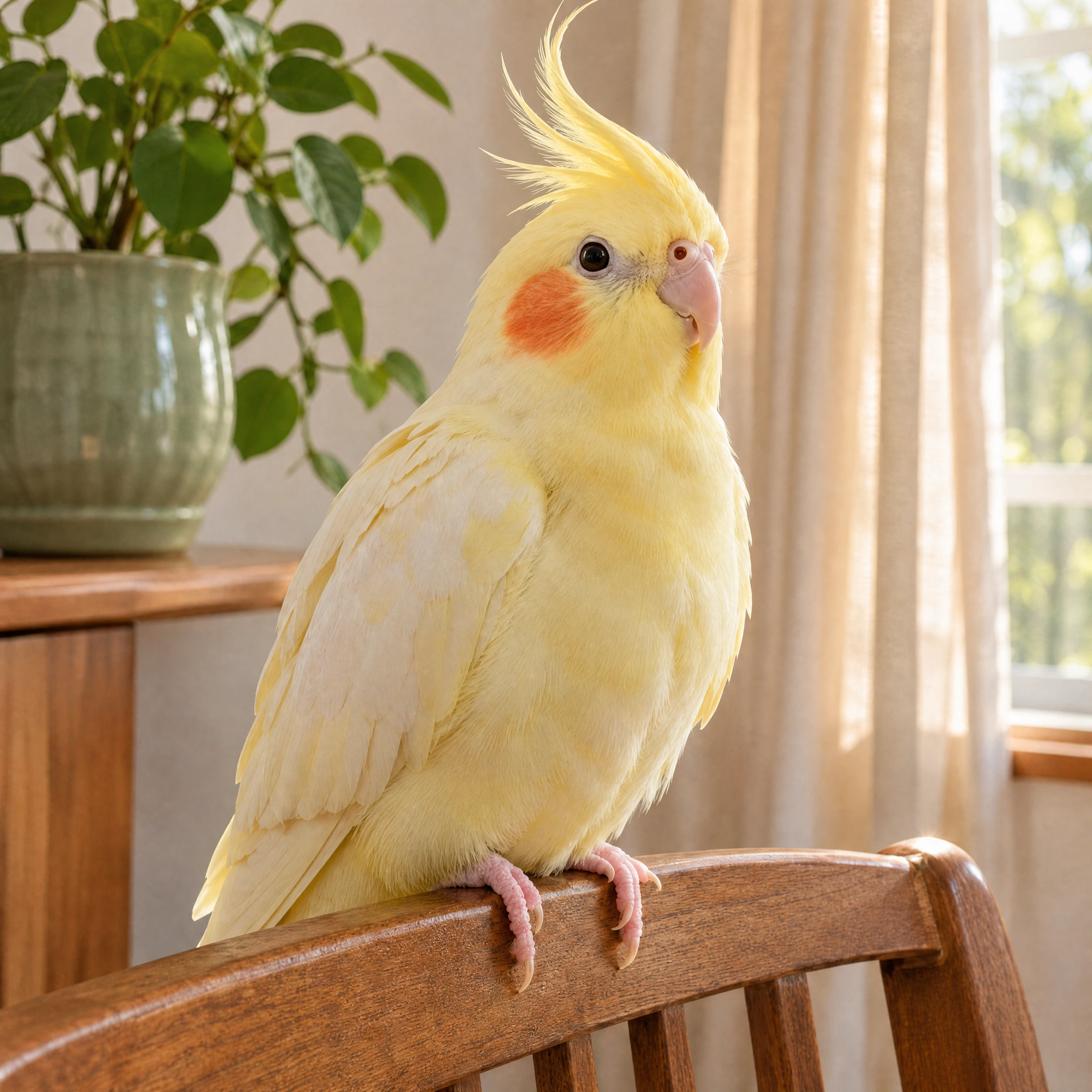 Your image, with more room.
Choose a scale to view target dimensions and credit costs before upscaling.
01Product photography
Give every product detail a closer look
When preparing product photos for a catalog or presentation, a larger image gives you more room to work. An AI image upscaler adds pixels across surfaces like brushed metal and textured leather. Inspect small dials, typography, and printed markings closely, as fine details can shift during upscaling.
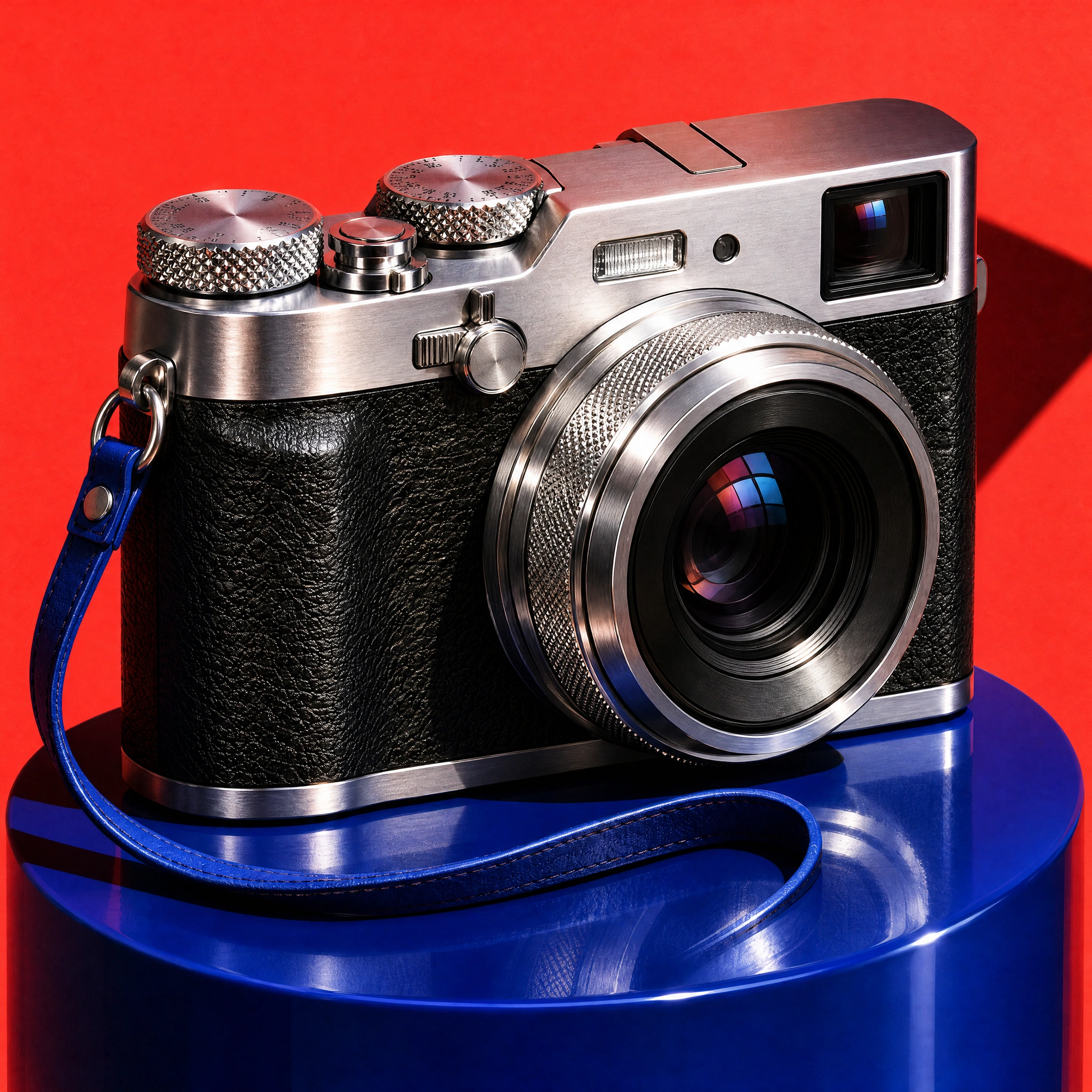
512 × 512 → 2,048 × 2,048 px. Check the knurled lens dial, leatherette body, and printed markings.
02Portraits & photography
Make room for the details that feel authentic
Portraits need more than sharp outlines to look convincing on larger screens. An AI upscaler adds pixels to areas like hair, eyes, and knitwear. Compare the enlarged crop beside your original photo to evaluate whether facial features still look natural.
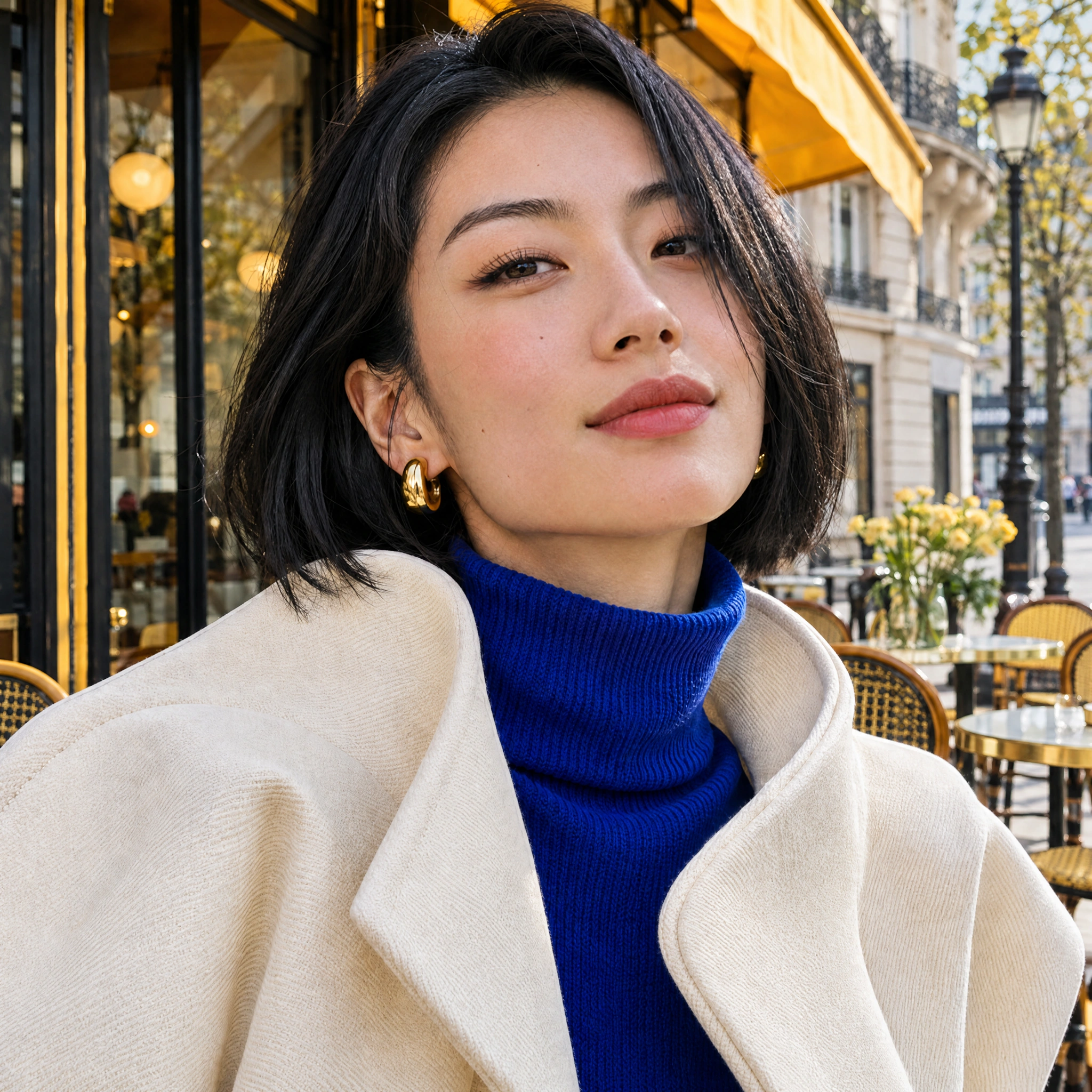
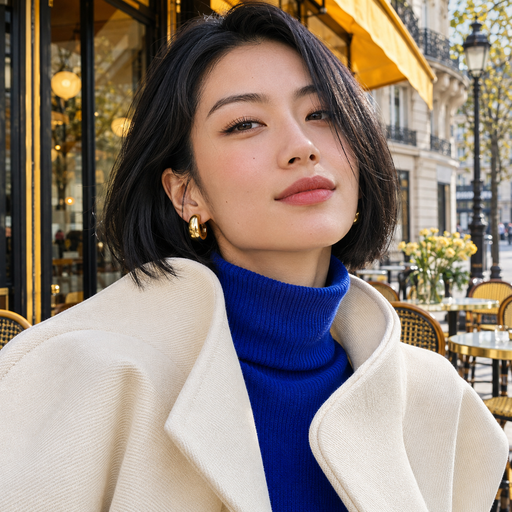
512 × 512 → 2,048 × 2,048 px. Inspect hair strands, eye highlights, and the knit collar.
03Illustrations & artwork
Let your artwork stretch a little further
Small digital illustrations often need extra resolution for editorial layouts or book covers. Image upscaling adds pixels across painted lines and color gradients, giving you room to evaluate the composition at a larger scale. Keep your original vector file whenever one is available.
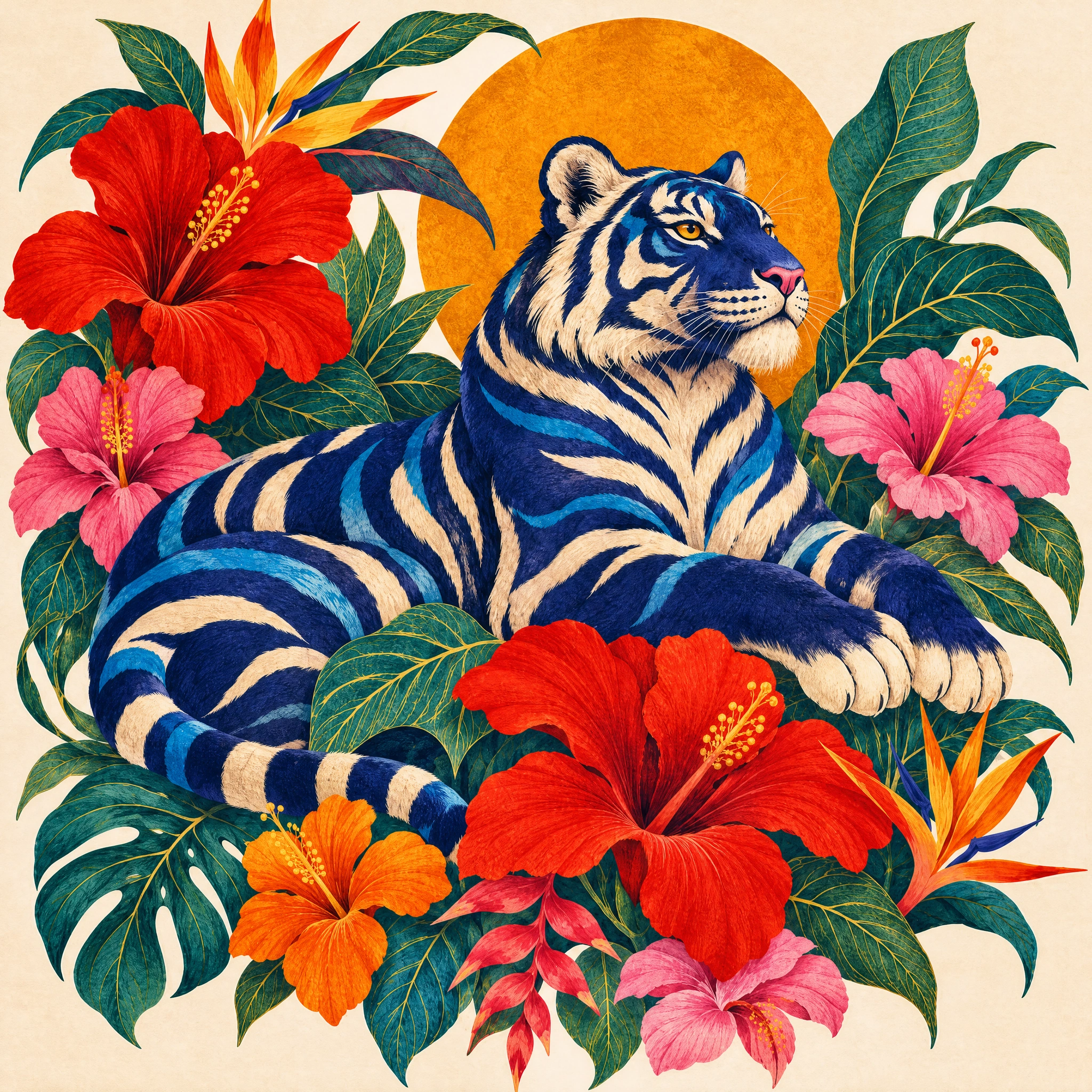
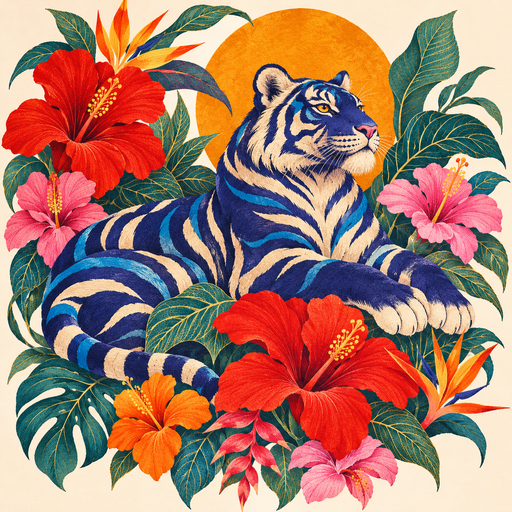
512 × 512 → 2,048 × 2,048 px. Follow the tiger's stripes, leaf contours, and fine flower petals.
04Wildlife & natural texture
Find the subtle textures in a larger picture
Feathers, fur, and delicate natural patterns make rewarding subjects for upscaling. An AI image upscaler adds pixels to fine areas like plumage and small rock flowers for larger displays. Check the result closely against your original photo, as models can estimate inaccurate detail when source quality is low.
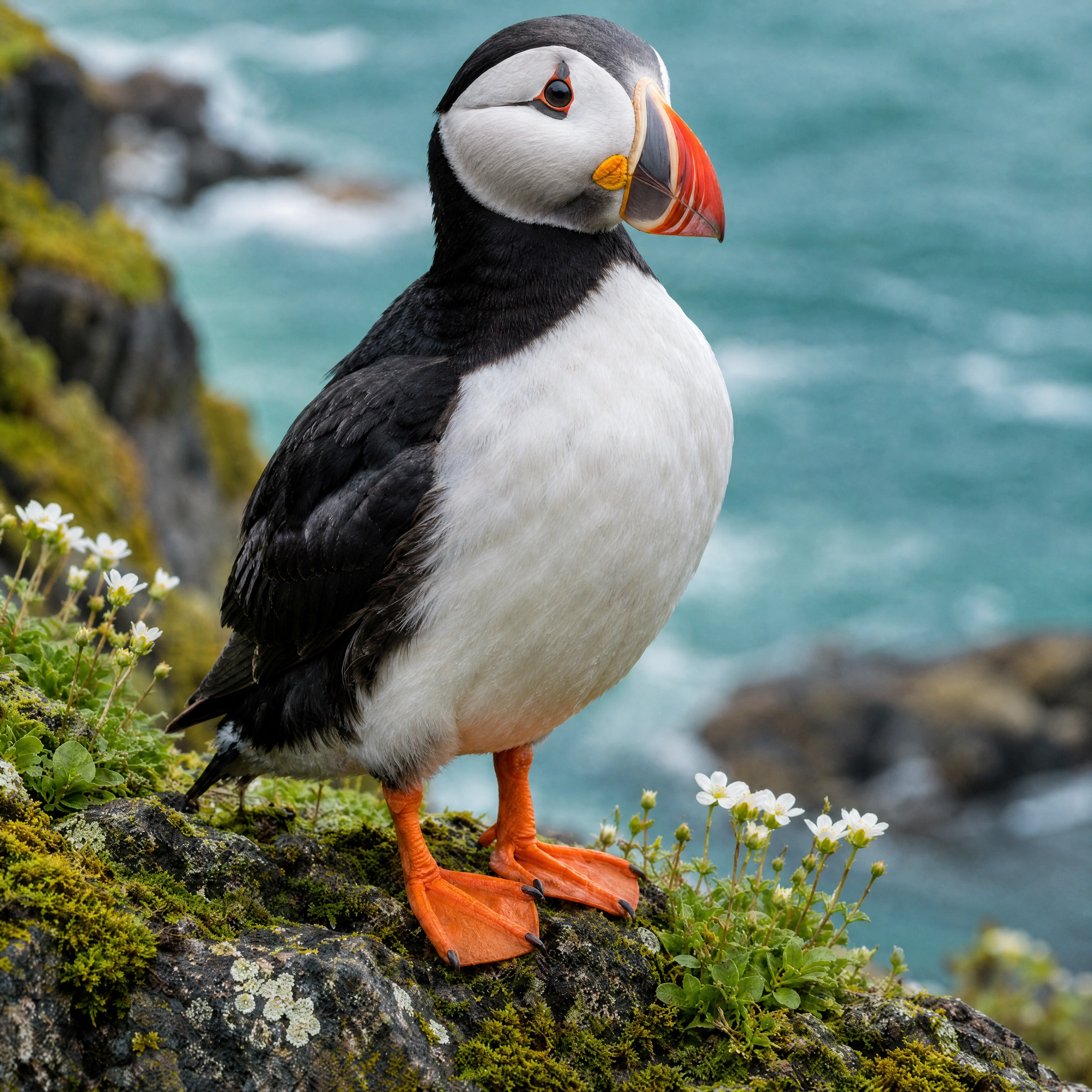
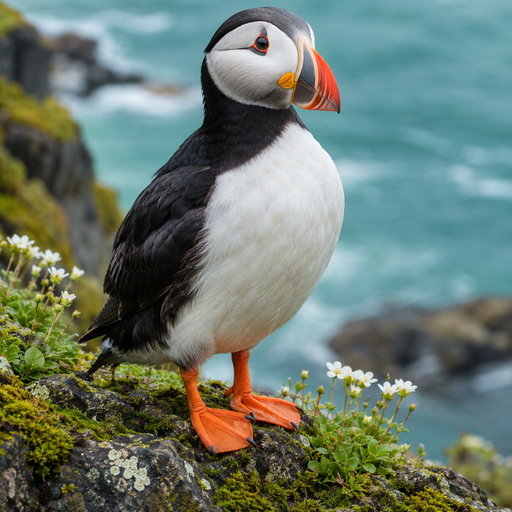
512 × 512 → 2,048 × 2,048 px. Compare feather edges on the puffin and moss on the rocky perch.
AI Image Upscaler FAQ
A few things to know before you go bigger.
What is an AI image upscaler?
An AI image upscaler increases an image's pixel dimensions while estimating fine details to keep edges and textures clean. Instead of simply stretching existing pixels, it generates a larger file suited for bigger screens or design layouts. The final look depends closely on the clarity of your original image.
How are upscaling and photo enhancement different?
Upscaling specifically increases an image's width and height in pixels. Photo enhancement focuses more broadly on improving light, color balance, and overall clarity, and may alter the image differently. Choose the tool that matches the specific adjustment your project needs.
Explore AI Photo EnhancerWhat does 2×, 4×, or 8× mean?
The multiplier applies to both width and height. Cloud processing supports standard source aspect ratios (1:1, 2:3, 3:2, 3:4, 4:3, 9:16, 16:9) up to a maximum of 2,048 pixels on each side and 4,194,304 total pixels (4 MP). Available scale options depend on your source image dimensions; outputs larger than 2,048 pixels are not available online. Final output is resized to target dimensions using integer-pixel rounding without cropping or stretching, though you should check the result as GPT Image 2 reconstructs fine content.
Can I upscale an image right now?
Yes. You can load an image and preview calculated dimensions locally right away. To upscale, sign in with a verified account to process using your credits. Completed tasks are automatically saved to My Creations and can be downloaded as PNG files to your device.
Is this AI image upscaler online free to use?
Loading images and checking target dimensions is free and works locally in your browser before login. Cloud processing requires a verified account and uses existing credits: a 1K target (up to 1,024 px per side) costs 6 credits, and a 2K target (up to 2,048 px per side) costs 10 credits. Required credits are shown before submission and held while processing. Credits are returned to your account if a task definitely fails or is cancelled.
Which image formats and file sizes can I upload?
You can load JPG, PNG, and WebP files up to 10 MB and 24 megapixels locally in your browser before login. Cloud processing supports standard aspect ratios (1:1, 2:3, 3:2, 3:4, 4:3, 9:16, and 16:9) for target outputs up to 2,048 pixels per side and 4 MP total. JPG photos with EXIF rotation or mirror transforms must be saved as an upright copy first.
How were the before-and-after images made?
The sample comparisons on this page were processed using GPT Image 2 image-to-image. Each factor case uses a separate input and model result: the 4× examples use 512 × 512 inputs delivered at 2,048 × 2,048 pixels, the 2× sea otter uses a 512 × 512 input delivered at 1,024 × 1,024 pixels, and the 8× sea otter uses a 256 × 256 input delivered at 2,048 × 2,048 pixels. Returned images larger than a target are only downsampled to the delivered dimensions, never enlarged.
Can upscaling make every blurry image sharp?
An AI image upscaler cannot recover detail that was never captured in the original file. When source quality is low or heavily blurred, the model may estimate inaccurate detail or create artificial textures. Start with the clearest image available and check the result closely.
Can I use an upscaled image for printing?
Check your final pixel dimensions against your intended print size and your printer's requirements. A higher pixel count provides more pixels to work with, but it alone does not guarantee a sharp print. Inspect fine details closely and make a test print before ordering important prints.
What happens to my uploaded image?
Your image is loaded locally in your browser to preview dimensions. When you submit an upscale, your file is uploaded for cloud processing, and the finished image is saved privately in My Creations. Clearing your workspace preview does not delete files already stored on our servers.