
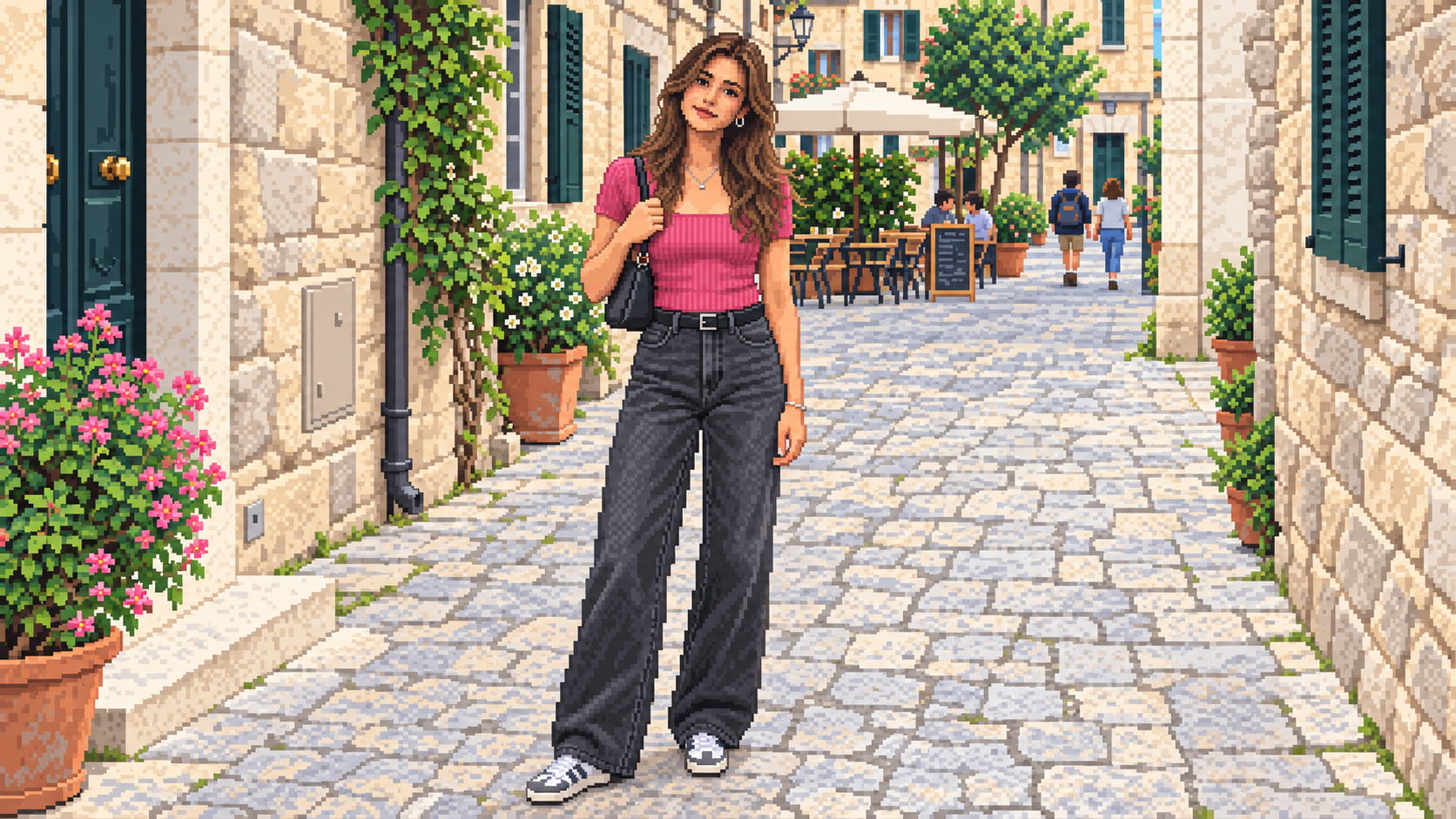
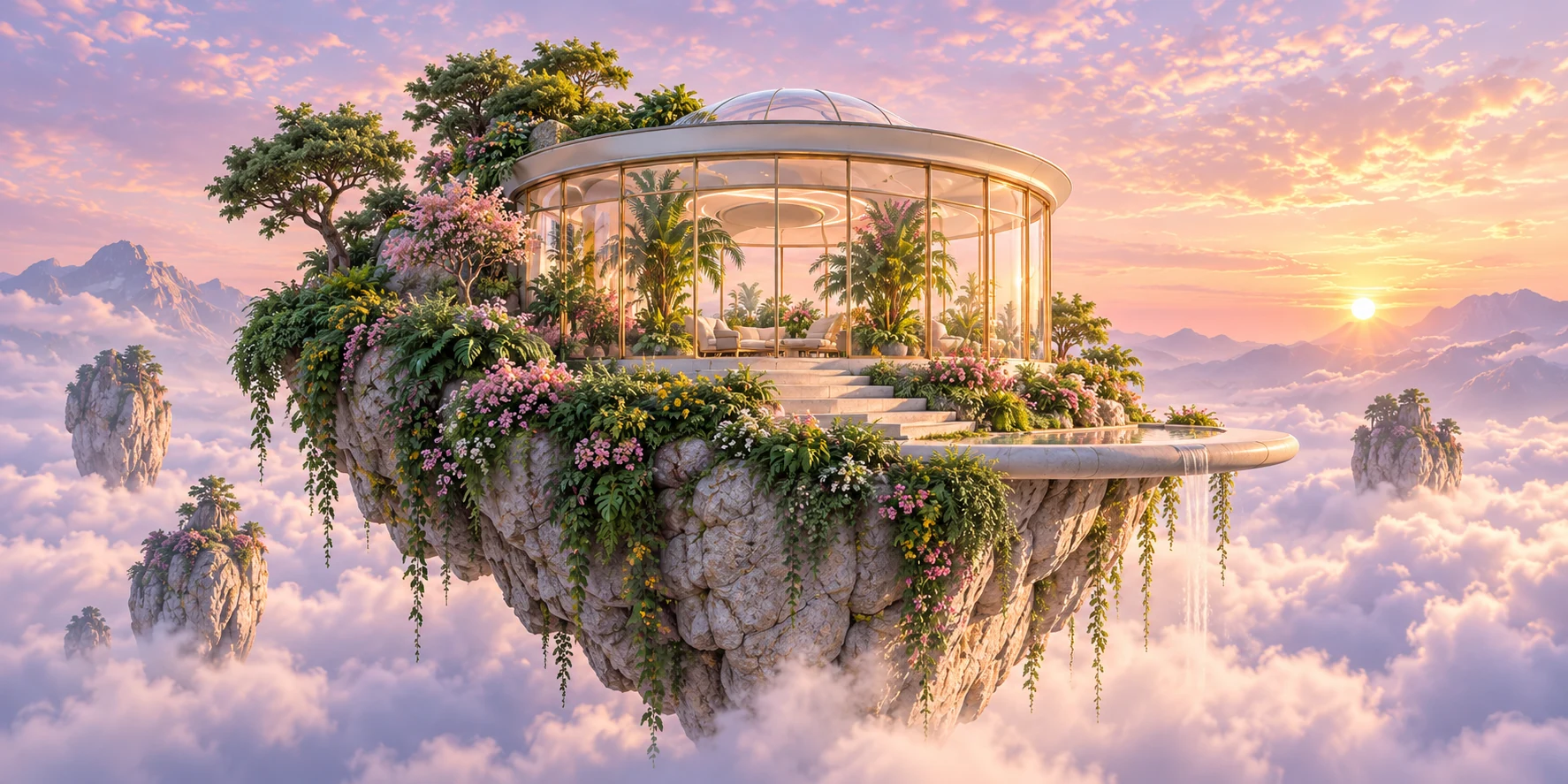
Text-to-Image Generation
Text-to-image generation uses descriptions of subjects, scenes, and styles to create concept art, illustrations, and original visuals. Draft and refine those descriptions in the editor.
Create images or edit your photos with a simple prompt.
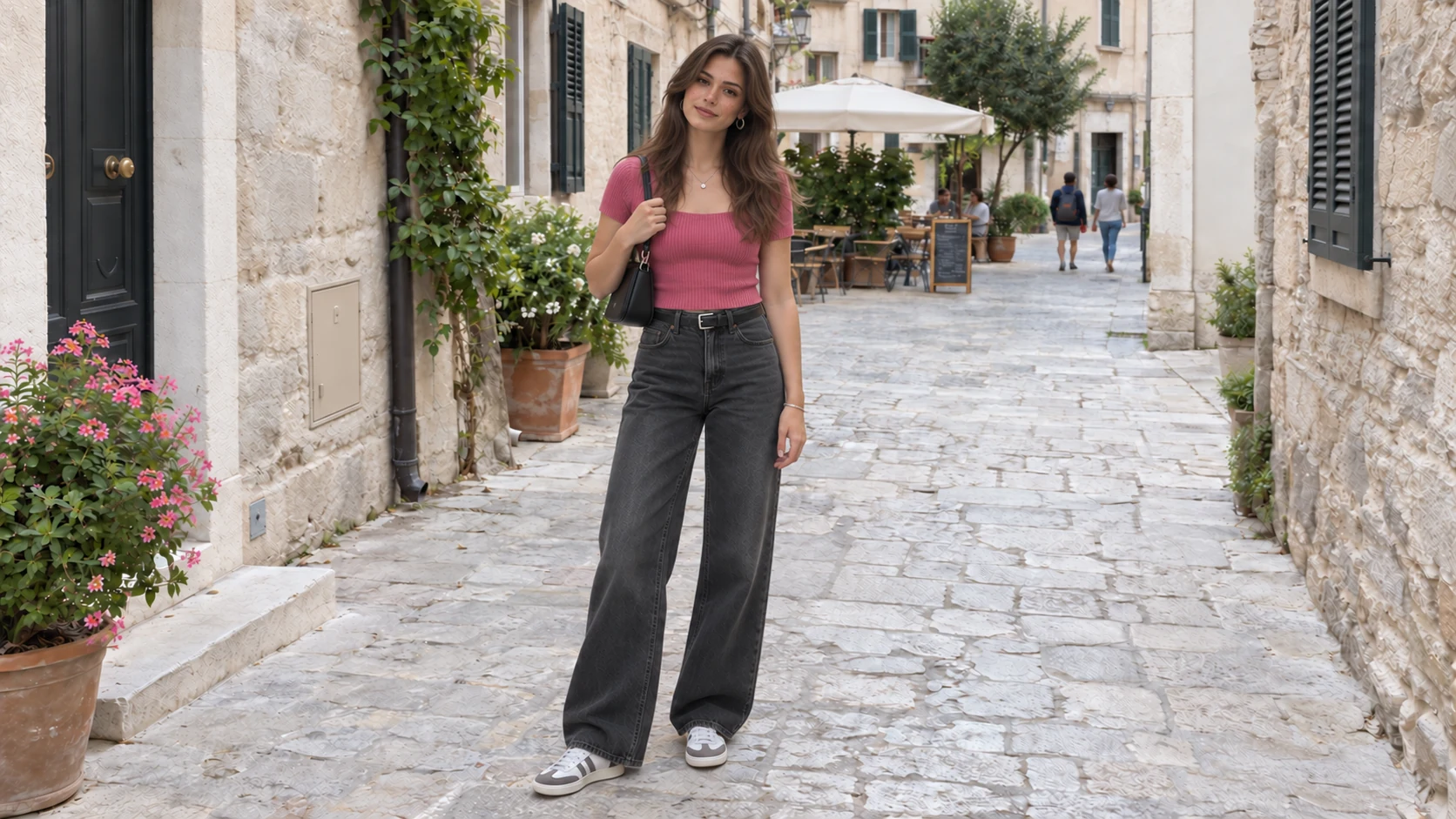
Explore text-to-image and photo-editing workflows below. Prepare prompts and references, then check availability in the editor.
Text-to-image generation uses descriptions of subjects, scenes, and styles to create concept art, illustrations, and original visuals. Draft and refine those descriptions in the editor.

Plan changes to backgrounds, lighting, or objects in product shots, portraits, and personal pictures using simple text prompts. Select a reference to accompany your draft; it is uploaded when you submit an edit.
Work entirely in your browser without software installs, complex brush tools, or switching between apps.
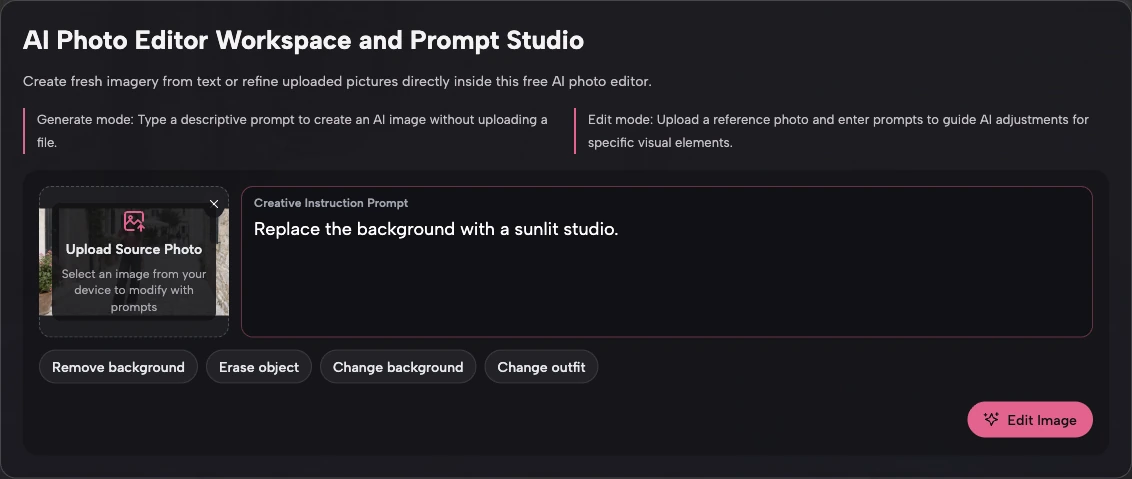
Open this web-based AI editor in your desktop or mobile browser without downloading or installing any software.
Type what you want to change in plain language instead of learning complex brush tools or layer menus.
Prepare text-to-image prompts and photo-editing drafts in the same browser tab, keeping your ideas in one place without switching apps.
Prepare an image in your browser, review its settings, and submit when generation is available.
You can draft without signing in. To submit a generation or view account records, use one of the sign-in options shown on the sign-in page.
For a new image, describe your scene. For a photo edit, select a local reference and describe the changes. Selected files stay in this browser until you submit an edit.
Review availability and cost, then submit your image. Your prompt stays in this browser, and completed results are available in My Creations.
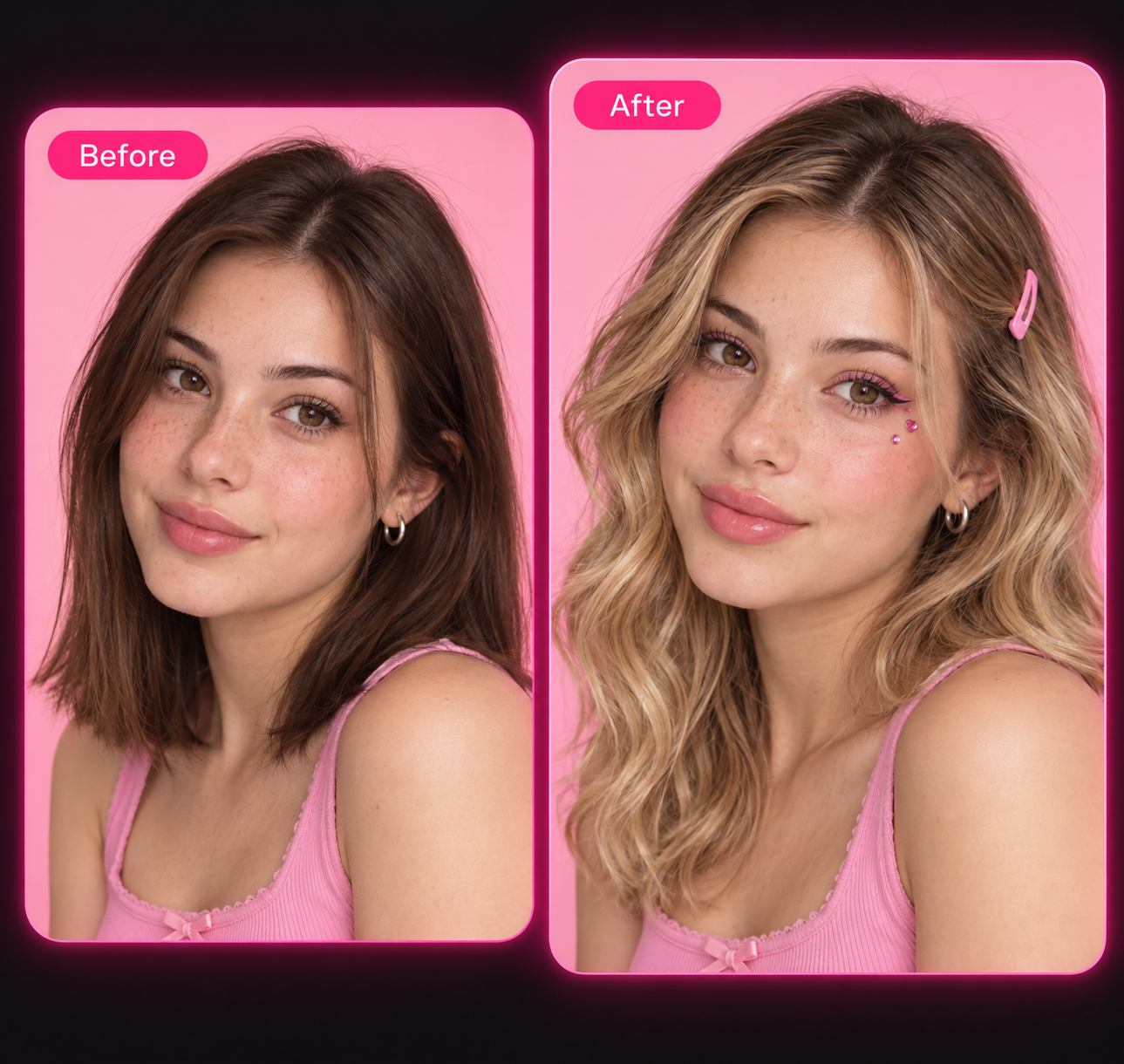
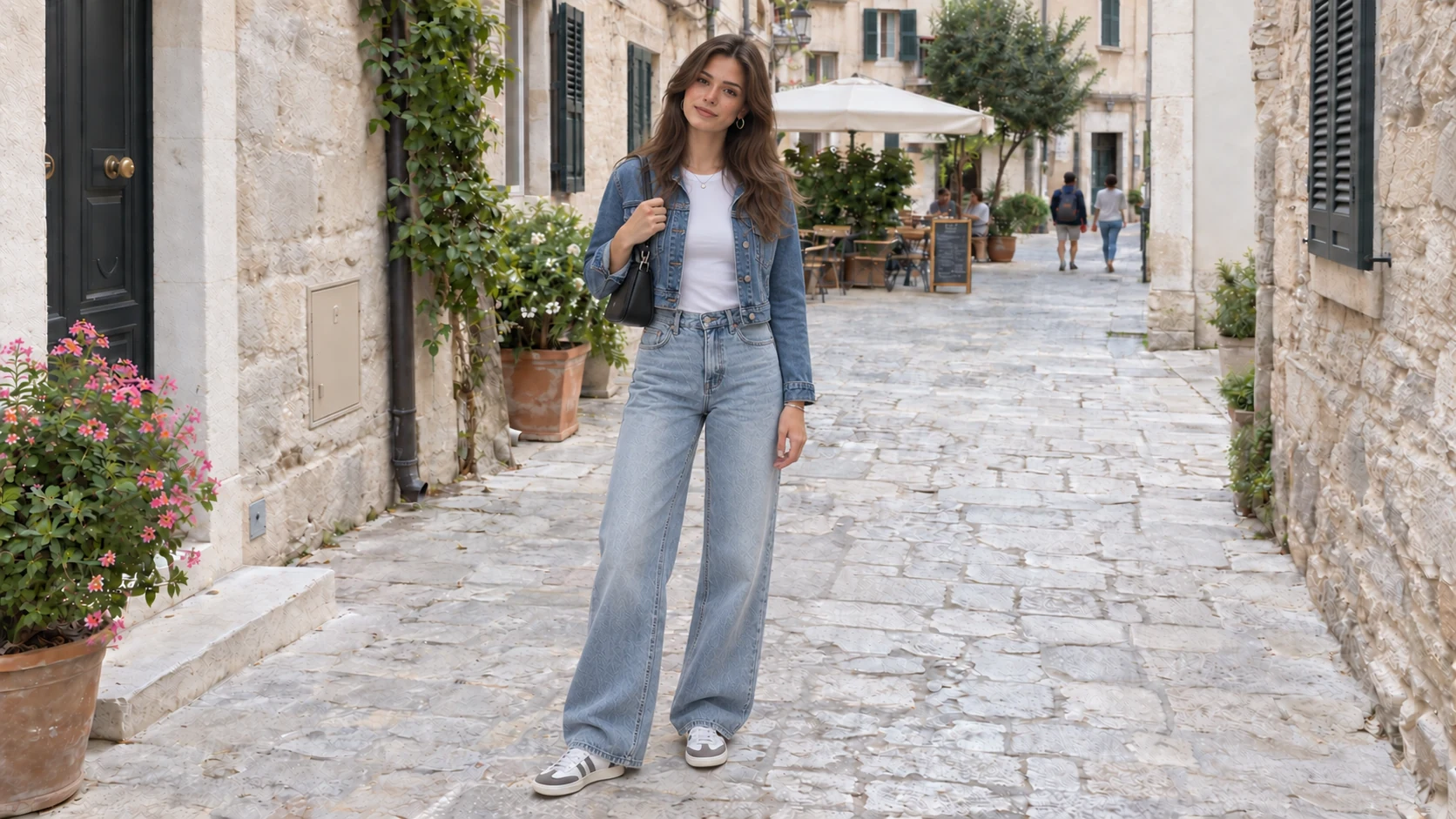
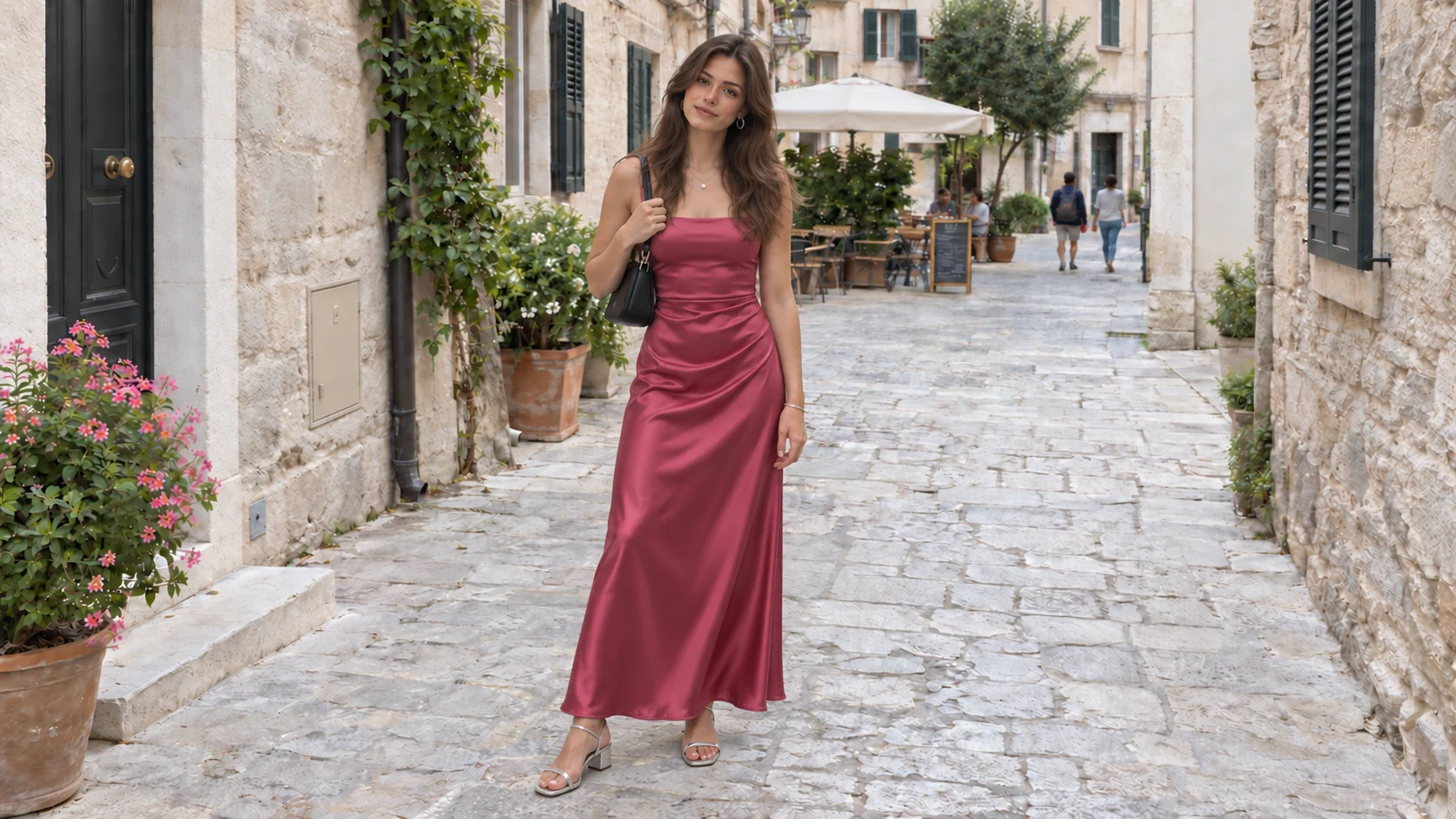
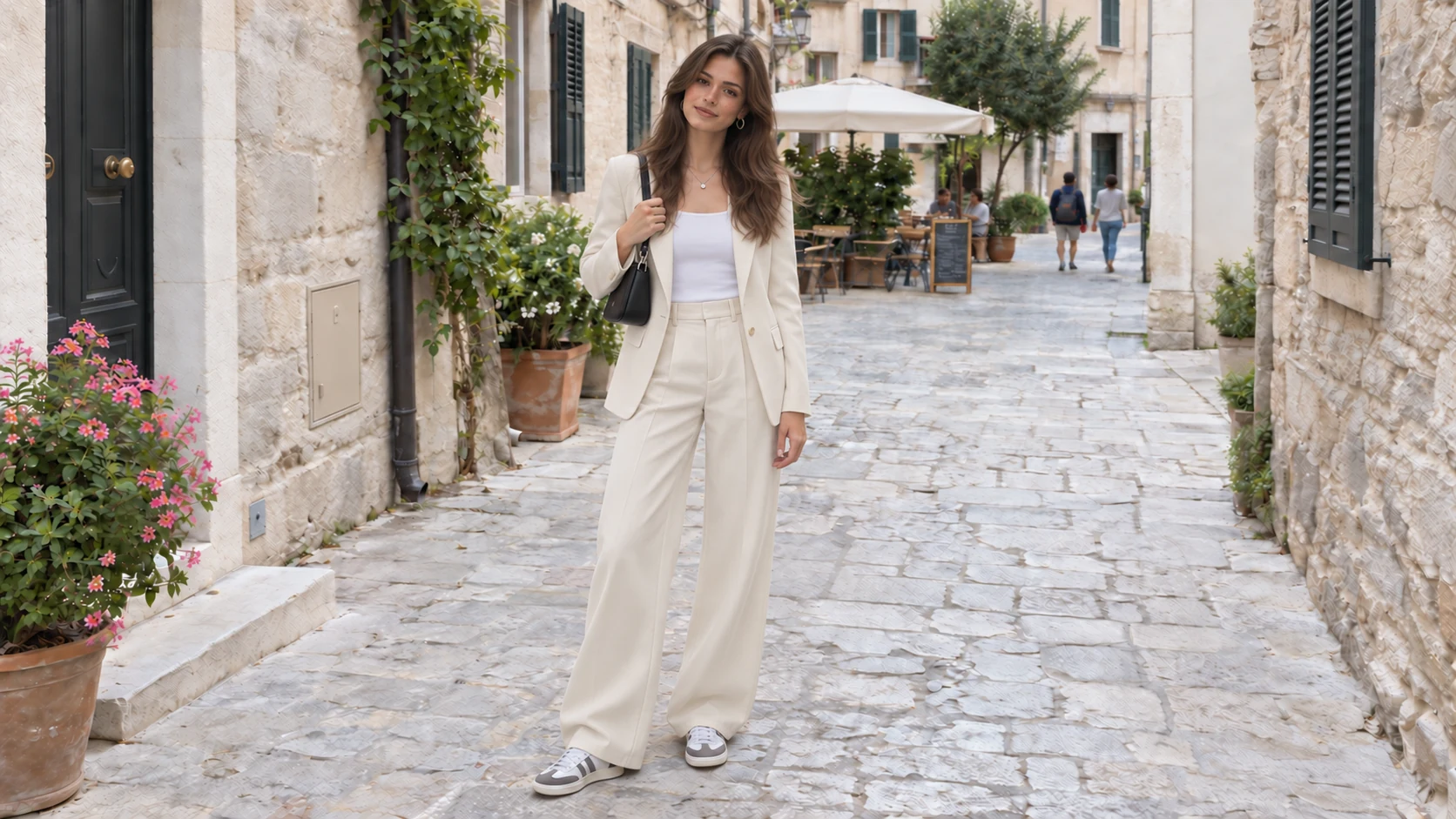
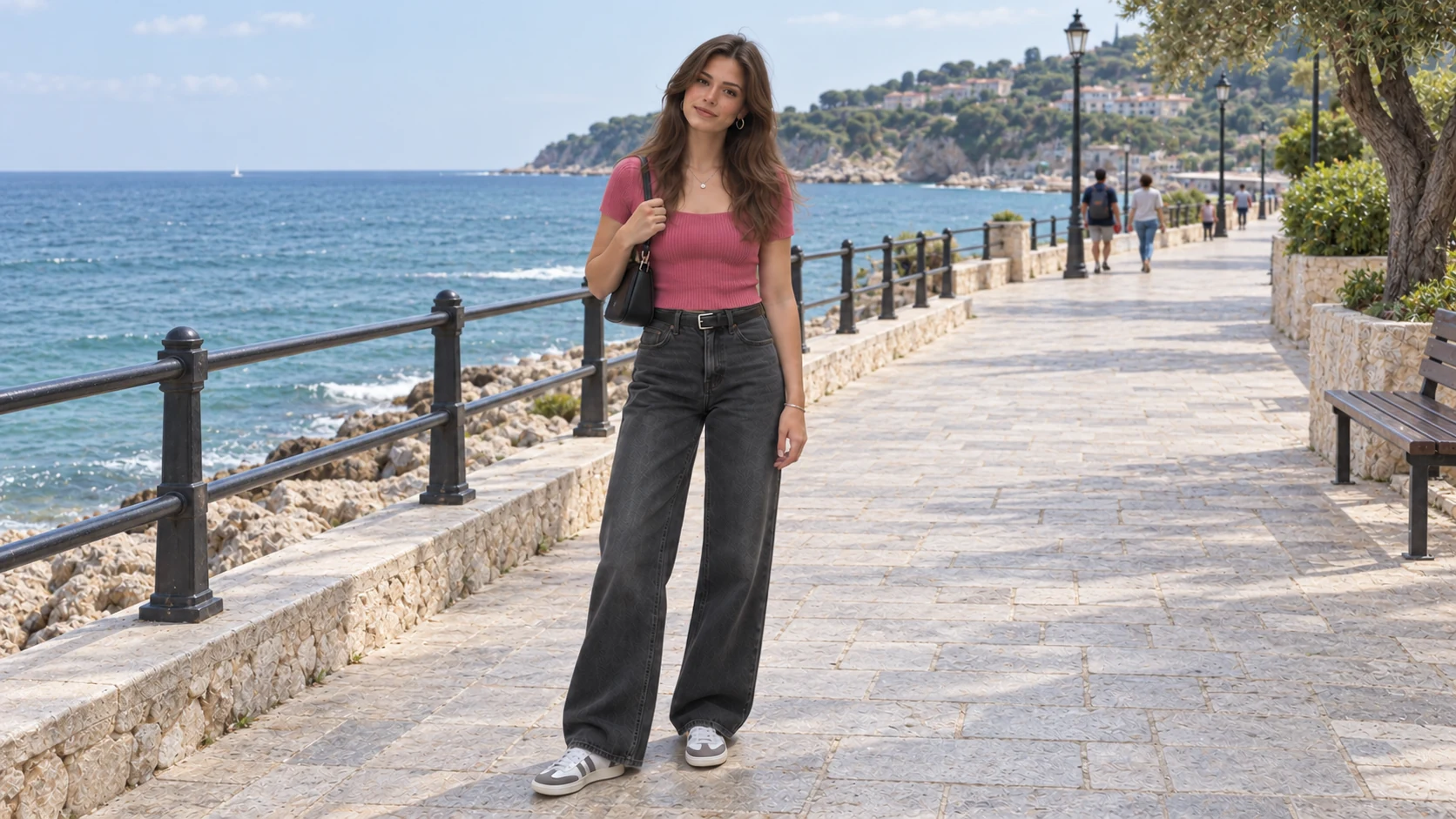
Explore photo-editing ideas for backgrounds, unwanted objects, and visual styles. The examples below illustrate creative possibilities for your prompts.
Plan outdoor settings, studio environments, or solid backdrops for a cluttered photo. Select a local reference and draft a prompt detailing the new setting.
For example, describe a wooden tabletop with morning sunlight or a marble counter for your product image. Prepare variations for seasonal themes and the lighting you want in a future edit.

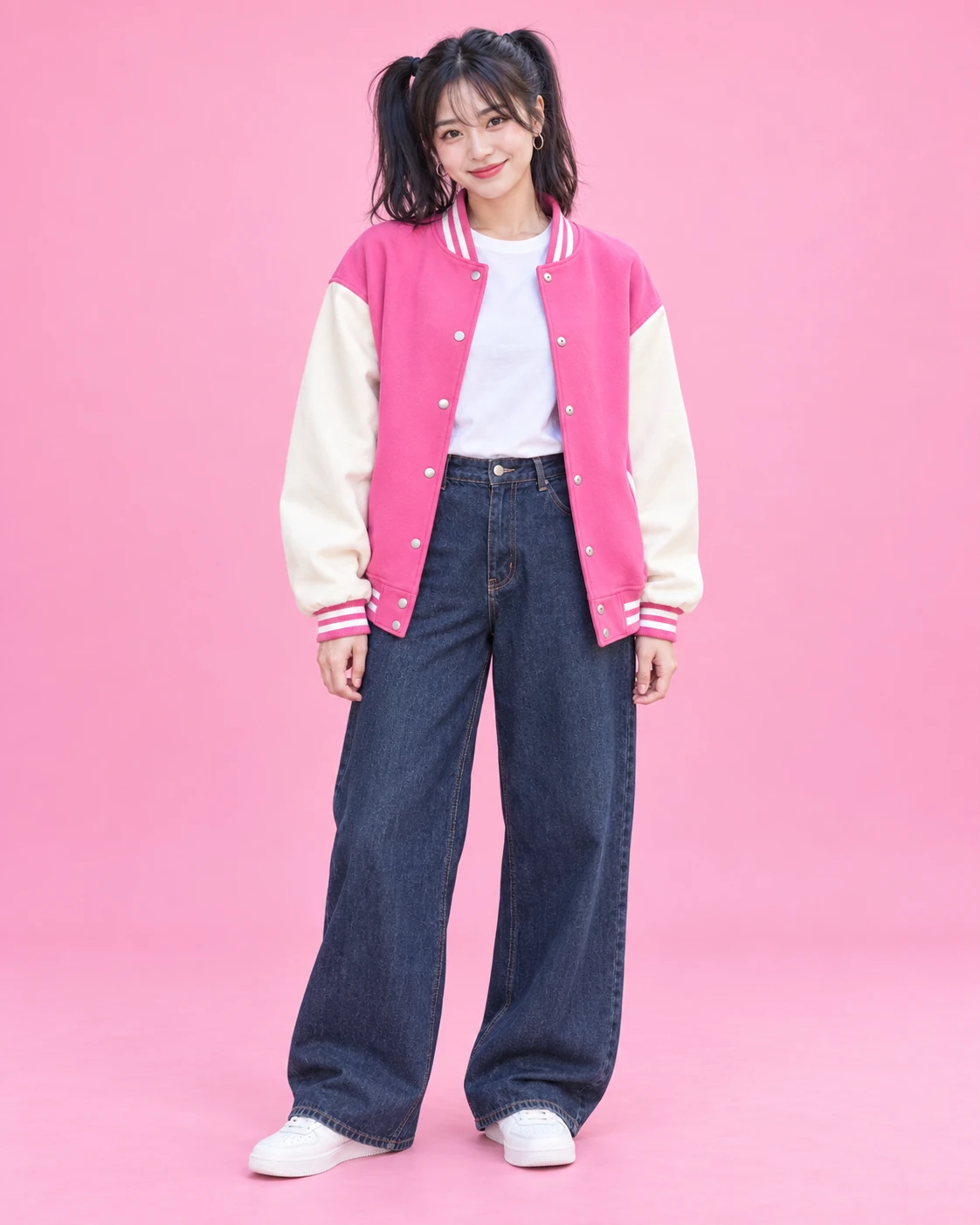
Explore prompt ideas for watercolor paintings, cyberpunk illustrations, or film scenes. Select a local reference for composition, or describe warm golden-hour lighting, cool neon tones, or soft pastel palettes.
Prepare text-only variations in the same workspace and check generation availability in the editor.
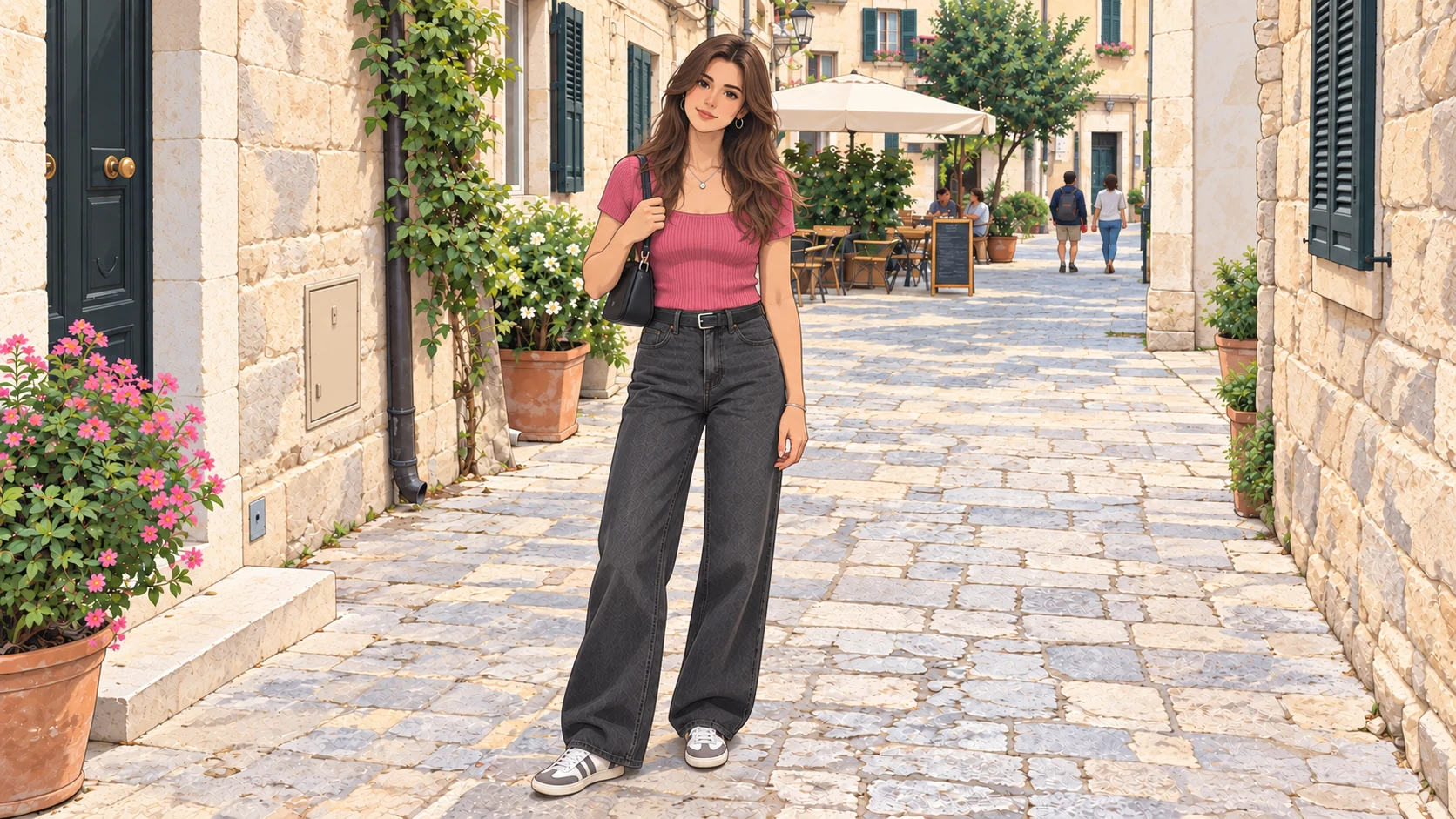
See how people use our AI image editor to update store listings, social posts, and personal photos.
I take most of my product photos at home, so they usually need a little work before going on the store. This fits nicely between taking the photos and uploading a listing.
Handy for those “love the photo, just needs a little fixing” moments. I’ve been using it to get images ready for my posts without turning each one into a whole project.
Some places look amazing in person and surprisingly dull in my phone photos. A few small edits help bring back the feeling of being there, without making the scenery look unreal.
Sometimes a layout is nearly finished and one photo just feels off. I’ve found this useful for those small adjustments rather than starting a separate editing project.
I used it while putting together an outfit mood board. The photos came from different shoots, and a little editing helped them feel like they belonged together.
Photo editing is one of those jobs I squeeze in between everything else. This has been useful for getting everyday photos ready for our website.
Used it for a group presentation. Our photos looked a bit mismatched, so I cleaned them up before adding them to the slides. Nothing fancy, but the final result looked much more put together.
I have an established workflow for client work, but sometimes I just need a quick edit of one shot to share. That’s where this has been useful for me.
I’ve been using it to adjust photos for my reference boards. Sometimes changing an image slightly helps me see a color combination or composition I hadn’t noticed before.
The best expression doesn’t always happen in the best light. I used this to tidy up a few favorite shots before sending a preview to a pet owner.
I want clearer listing photos, not photos that make old things look brand new. This has been handy for making small edits while keeping the character of each piece.
Used it to get a few rehearsal photos ready for a gig announcement. We weren’t going for a polished studio look—just something we’d actually feel good posting.
I’m pretty particular about how my beauty photos look. I used this for a few light adjustments before posting, rather than giving the whole image a heavily edited finish.
Making the piece is my favorite part. Photographing it, not so much. This helped me give my shop photos a little more care before putting them online.
My kitchen lighting doesn’t always do the food justice. I’ve used this to give recipe photos a little attention before posting, especially when a dish looks much better on the plate than in the picture.
We had event photos from several different people. I used this to edit a small selection for our recap post, which helped the final set feel more consistent.
Nice for the casual photos I post between shoots. I used it to polish a few images without trying to turn them into professional portfolio shots.
I mostly share photos of sketchbook pages rather than scans. A few small adjustments helped the pencil work show up more clearly in the images I posted.
Open PhotEditor to prepare prompts for background changes, object removal, or a new image. Keep your ideas in a local draft.
Draft locally and review current availability and credit cost before submitting a generation.
Answers to common questions about features, account sign-in, creative prompts, and AI image generation.
Yes. You can browse the workspace, write prompts, and select a local reference photo without signing up. Sign in to submit a generation when available. Current sign-in options are shown on the sign-in page.